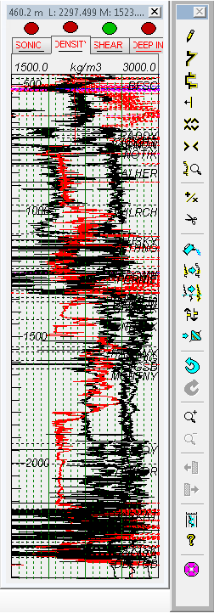
Block sections of existing logs using Log Editor so that GeoSyn, working within the highlighted zone, applies the mean, median, or RMS value between two tops to each set of tops.
To block portions of existing logs using Log Editor
1. Right-click the log and select Log editing.
The Log Editor
dialog box appears.
2. In the toolbar
beside the Log Editor, click the Blocking
tool ( ).
).
The Log Blocking
dialog box appears.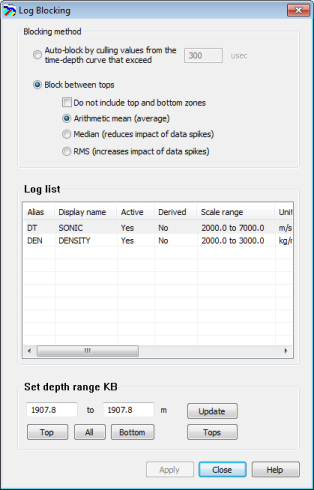
3. Select the algorithm used to derive a constant value that's applied to the zone between shallowest and deepest tops within your selection. GeoSyn automatically connects your selection to the nearest top.
4. Select the log(s)
to block.
CTRL+CLICK or SHIFT+CLICK for multiple selection.
5. Do one of the following:
Drag the cursor ( ) on the Log Editor log display pane to select a range to
block.
) on the Log Editor log display pane to select a range to
block.
Type values in the Depth range KB pane for the start and stop depth and click Update.
Click either top or bottom to accept the absolute depth from the log or click All to accept both.
Click Depths from tops to display the Depth Range from Tops dialog box and then select the formation tops that signify your zone of interest from the drop-down lists and click OK.
6. Click Apply.
| Drawing Straight Edge and Freehand Curves | Inserting Log Sections |
| Clipping or Filtering Logs | Applying Math Equations to Logs |
| Cutting Logs | Shifting Logs |