Open topic with navigation
Changing wavelet properties
Apply up to three filters to different segments of a model
and specify the amount of overlap between filters.
To change wavelet properties:
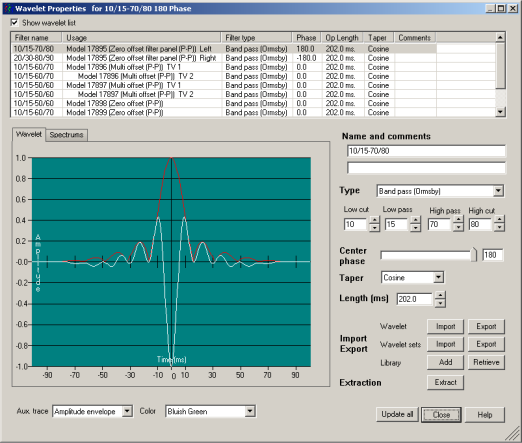
- Open the The dialog box :
- Menu: Edit > Wavelet
- From the toolbar click

- From the Aux. trace drop-down list,
select whether to display a background trace to which to
correlate the displayed trace
- From the Background drop-down list,
select whether to display a different color scheme.
- Type a value in the center phase box or
drag the slider below it.
- Type a length for the operator, which controls the sample
size displayed in the window.
- To customize the amplitude or phase spectrum of the
selected wavelet, click the Spectrums tab.
The tab appears.
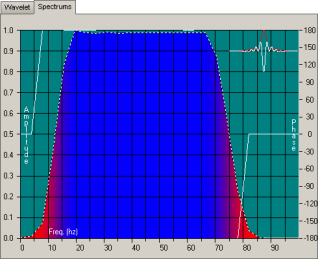
6. Hover your cursor over the amplitude display then click to
define points that describe the modified spectrum.
7. Click either Amp or
Phase to apply the defined points to either,
or click Clear (or press
ESC) to exit drawing mode without applying
changes.
8. Click the horizontal arrows at the bottom of the view
window to change the amount of frequency shown.
9. Click the Wavelet tab to review how the
changes will appear then click Close to
apply them to the main display.
Related Topics
Extracting wavelets
Importing wavelets and sets
Open topic with navigation