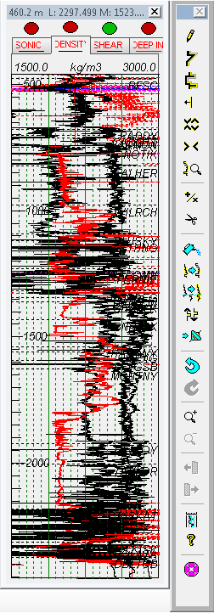
The Math dialog box enables you to generate derived logs based on readings from other logs as inputs. The log reading inputs are used as variables in either common industry equations provided by GeoSyn by default, or you can create your own equations. The equation calculates values on a sample by sample basis as it moves down the log.
The logs from which those readings are drawn as well can by either standard log types provided by GeoSyn (sonic, density, resistivity), or log types that you create. You can set any log type in GeoSyn (including a derived log type that you create) as the active log upon which synthetics are based.
Equations describing common relationships such as density to sonic and resistivity are available from a function library.
For details about merging log runs, see Related Topics below.
A library of standard functions or equations ships with GeoSyn. While you can't overwrite the default equations in this library, you can copy them as user functions and then modify or delete them. Because the function library is centralized, any GeoSyn synthetic can access the equations you create.
GeoSyn users with their own equations created with versions of GeoSyn before the function library was introduced can open the synthetics that contain these equations and save the equations to the function library so that they're available to all synthetics.
The general Log Equation Library dialog box, which is used to create equations for any log type, is accessed through several different dialog boxes available from the Edit menu. You can also invoke the Log Equation Library dialog box for only a specific log using the Well Properties > Log Properties dialog box.
1. Right-click the log and select Log editing.
The Log Editor
dialog box appears.
2. In the toolbar
beside the Log Editor, click the Math
tool ( ).
).
The Log Math
dialog box appears.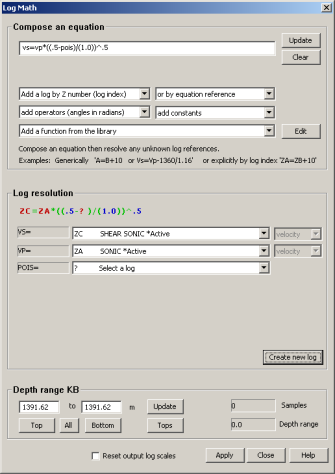
To copy a portion of one log to another, enter the following equation XX=YY, (where XX is the recipient log and YY is the source log) drag the interval to copy in the source log, and then click Apply.
3. Do either of the following:
To build an equation based an equation in the function library, select the equation from the Add a function from the library drop-down list,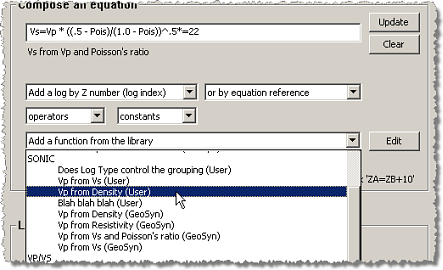
and then do either of the following to modify the equation. If the desired function doesn't appear, click Edit to the right of the drop-down list to launch the Log Equation Editor dialog box and create it.
Type equation terms directly in the top box of the Compose an equation pane.
Select equation terms from the drop-down lists above the Add a function from the library drop-down list.
4. Using the Log Resolution pane, select a log from each drop-down list to the right of each equation term to associate a log with each term.
5. Do one of the following:
) on the Log Editor log display pane to select a range to
which to apply the mathematical equation.6. Click Apply.