Querying an AccuMap Database
Query an AccuMap database. Query results can be pushed into a DataCard, displayed on the map, saved to a list, or saved to a list and displayed on the map in one step.
To query an AccuMap database
- Using the Data tab in the Ribbon, click Query (
 ).
).
The dialog box appears.

- To work with a query previously created, click Open (
 ) and then browse to a query file to use.
- From the Find All drop-down list, select an AccuMap database (Facilities, Fields, Land, etc.) to query. Where you aren't licensed to a database, a padlock appears to the left of the database name (
 ).
).
A query can only pertain to one database.
- Using the Attribute Selector pane, which appears below the Find All drop-down list, click > to expand the Region group and select whether to constrain the query to only items that appear in a list, annotation, the current map extents, an old-style AccuMap region file with a .rgn file extension, or a user layer. All of the items that appear in a list can also be excluded from the query so that every item except the items appearing in a list are queried.
A query string must contain a Region, which causes the query to search within a list, the current map extents, map annotation layers, or region files with a .rgn file extension, or user layers.
- Expand the data groups to select a data field with which to query. Limit the data fields that appear in the pane by typing the adjacent letters that appear anywhere in the desired data field using the Filter Data Fields pane as depicted below.
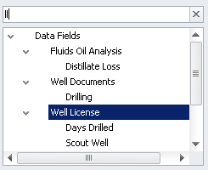
The Criteria Selector pane to the right of the Attribute Selector pane is populated by controls with which you construct the query. The type of controls that appear in the Attribute Selector pane depend on the type of data that's stored in the data field that's selected in the Attribute Selector pane. For example, data fields that are associated with a calendar date include a mini calendar control. Data fields that include free-form text include a text box in which you type the adjacent letters that appear anywhere in the desired term. Data Fields that rely on a specific value from the database enable you to select results to add to the query directly from the database. For details, see Looking up Formation Names in the Related Topics below.
For definitions of the numerical operators (=, <=, etc.) see Related Topics below. For text strings you can type commas between multiple terms as an AND operand (where all terms must be found in order for a match to be made), or select the Convert commas to Or terms check box so that even a single term can produce a match.
- Build the query string using the controls that appear in the Attribute Selector pane and then click one of the following:
- Append - attach the criteria formulated above to the criteria currently selected in the Query Builder pane with an OR Boolean operator. This option only becomes available after the first query phrase is created. Only criteria from the same data field can be appended. When criteria is appended, the
 controls appear at the bottom of the Criteria Selector pane, with which criteria can be navigated and deleted.
- Replace - replace the criteria currently selected in the Query Builder pane with the criteria currently in the Criteria Selector pane. This option only becomes available after the first query phrase is created.
- Add - attach the criteria formulated above to the bottom of the Query Builder pane connected to the existing query string with an AND Boolean operator.
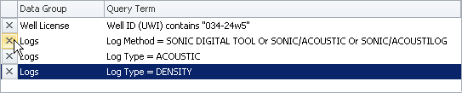
- To remove a data field from the query, using the Query Builder pane, click X as depicted below.
- To save the query string so that it can be shared, re-run, or built upon in the future, click either Save (
 ) or Save As (
 ).
).
- Click Run Query.
The dialog box appears.
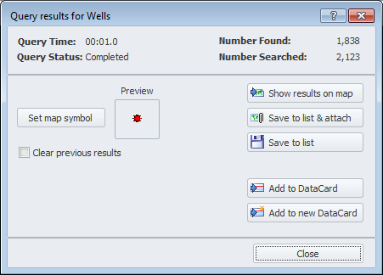
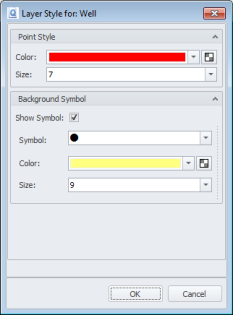
- Click Set Map Symbol to display the dialog box where you specify the display properties to apply to the line, point, or region that matches the query on the map, and then click OK to return to the Query Results for dialog box. For details, see Changing Map Layer Display Properties in the Related Topics below.
- Select whether to redraw the map before displaying the query results on the map.
- Using the dialog box, select from the following options:
- Show Results on Map - click to display the query results on the map before attaching them to the map as a layer or committing them to a list. As with the Clear Previous Results option or Clear Results (
 ) button on the Ribbon toolbar, you might use this option while building and honing your query until the desired results appear on the map.
- Save to List and Attach - click to save the query results as a list, which is then attached to the map and visible in the Layer Legend under the Lists node. Even if the query isn't saved, when you close and open the Query dialog box, the query appears. If you save the map but neglect to save the query that appears in the Query dialog box, the query is automatically saved along with the map and appears the next time you display the saved map and open the Query dialog box.
- Save to List - similar to the Save to List and Attach option, this saves the query results to a list, but doesn't attach that list to the map. You might use this option to further refine the list before attaching it to the map, to share it with other users, or to use the query results with third-party applications that read lists.
- Add to DataCard - click to launch a DataCard with the query results displayed in the navigation pane that appears on the left side of the DataCard. If a DataCard is already displayed, the results appear alongside other items that may appear in the DataCard. Otherwise, a new DataCard is launched.
- Add to New DataCard - click to display only the query results in the Data Navigator pane of a DataCard.
When the query is run, the Run Query button is re-labelled Query Results and a drop-down button appears on the right of the button that you click to Rerun the query if the query string has not changed.
 Related Topics