 ), and then click the button to display the Connection Info dialog box and browse to the CorporateSpatialCatalog.xml file you copied to a writeable location above.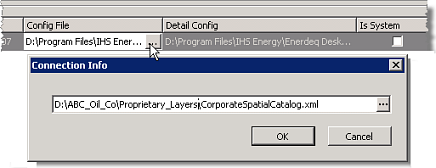
Proprietary shapefiles can exist as individual shapefiles in a directory that's accessed either directly or accessed using an ESRI Spatial Database Engine (SDE). For details on creating proprietary spatial data or configuring an SDE, refer to your ESRI ArcGIS software documentation.
EDIN ships with two XML files that control which proprietary shapefiles are displayed and the rendering details for those shapefiles. You move these two XML files to a location where you have Write access, but where EDIN Desktop users only have Read access, and then orient Admin Console to the location of those XML files and also to the location of your proprietary shapefiles or SDE server(s). Once this is done, using the map legend in EDIN Desktop, add and configure the proprietary shapefiles. EDIN Desktop writes those configuration details to the two XML files.
The two XML files are as follows:
The CorporateSpatialConfig file, which
lists every individual shapefile, whether it's displayed on the map or
not, and is referenced by the CorporateSpatialCatalog file.
The CorporateSpatialCatalog file,
which lists the shapefiles that are accessible to EDIN Desktop users,
the draw order, and other rendering details.
To add proprietary data sources to EDIN Desktop
1. Browse to the Samples directory within the root directory in which you installed Admin Console and copy the CorporateSpatialCatalog.xml and CorporateSpatialConfig.xml files to a directory where you have Write access, but where EDIN Desktop users only have Read access.
2. In the Admin
Console navigation tree, click Manage Data Sources (this option appears in the Advanced node for Network Application installs).
The Manage Data Sources: View and edit Data Set dialog box appears.
3. Clear the Enable Workstations check box.
4. In the Additional Data Sources pane, click Edit in the Corporate Spatial Data pane to display the Edit Corporate Data dialog box.
5. Click in the cell below the Config File column header to display the edit button (), and then click the button to display the Connection Info dialog box and browse to the CorporateSpatialCatalog.xml file you copied to a writeable location above.
6. Click in the cell below the Detail Config column header to display the edit button (), and then click the button to display the Connection Info dialog box and browse to the CorporateSpatialConfig.xml file you copied to a writeable location above.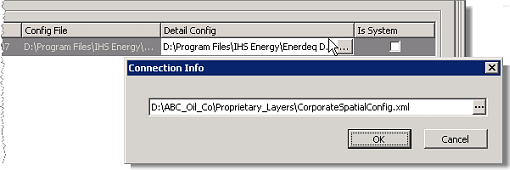
7. Click  to display the corporate_shape and the corporate_sde rows beneath the existing row, as depicted here.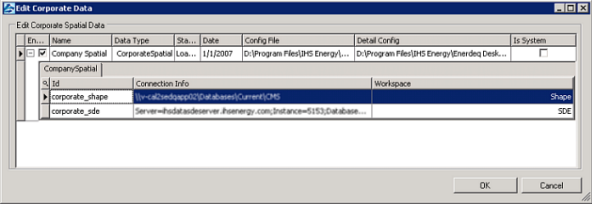
8. Click the Connection Info cell in either the corporate_shape or corporate_sde row (depending on whether you want to reference a directory
of shapefiles or an SDE server -or both) to display the edit button (), and then click the button.
9. Depending on your selection above, do one of the following:
| corporate_shape | corporate_sde |
|---|---|
The Connection Info dialog box appears.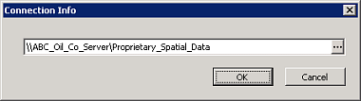 Click the edit button ( ) and navigate to the directory that contains your proprietary shapefiles.
|
The Connection Info dialog box appears. 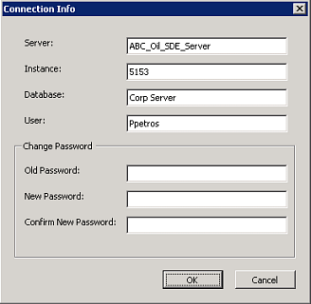 Type the logon details as follows: Server - the computer name, Instance - the port number, Database - the database name (there may be several different databases on the same computer), and User - the logon name, and then click OK. |
To configure multiple SDE servers, right-click the corporate_sde row and click New SDE Server from the shortcut menu.
10. Using the Edit Corporate Data dialog box, ensure the check
box in the Enable column in the left-most cell of
the Corporate Spatial row is selected, and then click OK to return to the Manage Data Sources screen.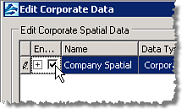
11. In the Additional Data Sources pane, click the Use in EDIN check box to make the proprietary shapefiles accessible to EDIN Desktop.
12. Configure the actual layers to display be completing the steps detailed in the Adding company layers topic (see Related Topics below).
You can't delete the default corporate spatial layer data source defined above, but you can change which configuration file and server it uses.
| Adding company layers |