To specify the Control Engine
server
To specify the Control Engine
serverControl Engine is a service that runs on a server and specifies both the location of files for authenticating Enerdeq Desktop users, and the resources and location of resources users access. For example, when you update the current relational and spatial databases in the Application Preferences Monitor dialog box, Control Engine specifies where those preferences are written and authorizes users with those settings the next time they launch the Enerdeq Desktop application.
You specify the server and port on which Control Engine will run in your environment when installing Admin Console and don't typically change these settings. The server you specify can be unique from the server(s) on which you load spatial and relational data.
To specify the Control Engine
server
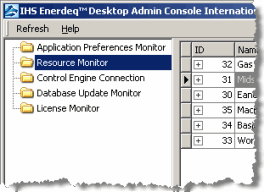
1. In the Admin Console navigation tree, click Resource Monitor.
The Resource Monitor dialog box appears.
|
Note the host name and port on which the current Control Engine service is running, which appears in the bottom-left of the Admin Console window. |
|
2. In the Admin Console navigation tree, click Control Engine Connection.
The Control Engine Connection tab appears.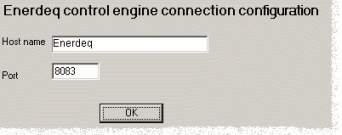
3. Type a different server name and port number on which you want Control Engine to run, and then click OK.
 Changes
you apply using other tabs in Admin Console are written to files defined
by the instance of Control Engine running on the server above. These changes
won't affect users until the next time they launch Enerdeq Desktop. You
can clear the Enable Workstation check box on the Application
Preferences Monitor dialog box to prevent users from logging onto
Enerdeq Desktop until you're sure everything is working correctly. For
details, see Related Topics below.
Changes
you apply using other tabs in Admin Console are written to files defined
by the instance of Control Engine running on the server above. These changes
won't affect users until the next time they launch Enerdeq Desktop. You
can clear the Enable Workstation check box on the Application
Preferences Monitor dialog box to prevent users from logging onto
Enerdeq Desktop until you're sure everything is working correctly. For
details, see Related Topics below.

|
|