 To create or edit a data set
Enerdeq Desktop uses both spatial and relational data. Spatial data is the geographic information that appears on Enerdeq Desktop maps. Relational data is the underlying data linked to spatial data.
Relational and spatial data with matching version and date information are referenced using a single, uniquely named data set that you create. For International installs, along with relational and spatial sources, data sets also include a file that specifies a root directory within which subdirectories with well and field images, and basin monitor PDFs are saved. Proprietary data isn't associated with a particular data set.
Although only one data set can be active at a time, it's a good idea to have two separate data sets, each pointing to different data sources. Users stay connected to the current data set while you update the inactive data set, test it, and then change it to the active data set. This way, if there's a problem with the process or with the data, you can easily revert to the other.
When you first install Enerdeq, it automatically creates a data set for you. Afterwards, you can either create a brand new data set, or replace the data currently associated with a data set. The following procedure enables you to do either.
To create or edit a data set
1. In the Admin Console navigation tree, click Advanced, and then Manage Data Sources.
The Manage Data Sources: View and edit Data Set dialog box appears.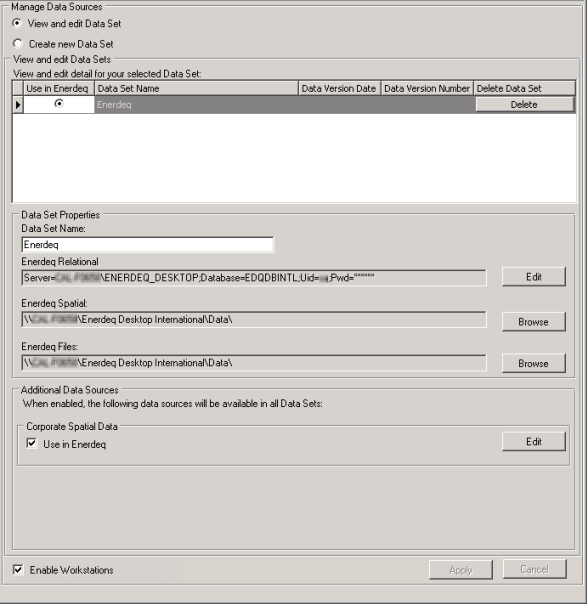
2. Ensure the View and edit Data Set radio button is selected at the top of the screen.
 Select the existing, active data set in the View and edit detail... pane, and then review the Data Set Properties pane to determine the paths to the active spatial and relational data sources (and the root directory of well and field images, and basin monitor PDFs for International installs). You will want to point to different data sources with the data set you're about to create.
3. At the top of the pane, click the Create new Data Set radio button.
The Manage Data Sources: Create new Data Set dialog box appears.
4. Type a unique name for the data set, and then using the Enerdeq Relational pane, click one of the following:
Create new database -and specify a new server, database, and logon details.
Select existing database -and specify a server, database, and logon details where Enerdeq relational data is already installed. The current data installed in this location is overwritten during the steps below. You can also use this option to update the logon details for a server.
 Note: A relational or spatial data source shouldn't be referenced by two different data sets.
5. In the Enerdeq Spatial pane, click Browse and navigate to your spatial data.
For International installs, browse to a root directory with subdirectories that contain well and field images, and basin monitor PDFs.
 Tips:
Tips:
You must have write access
to the location where to install Enerdeq data.
SQL Server must already be installed on the machine where you're loading
relational data and the path you specify must be local to that machine (C:\New_Relational_Database). SQL Server doesn't need to be installed on the same machine where the spatial data is loaded, but the location you specify must be shared as either a mapped drive, or identified in uniform naming convention (UNC) format (\\Spatial_Data_Server\Spatial_Data).
6. Click Apply.
7. In the Admin Console navigation tree, click Data Installation and Update.
The Data Installation and Update dialog box appears.
8. Browse to the data installation DVD you received from IHS, and then click Load Data.
9. In the Admin Console navigation tree, click Advanced, and then Manage Data Sources.
The Manage Data Sources: View and edit Data Set dialog box appears.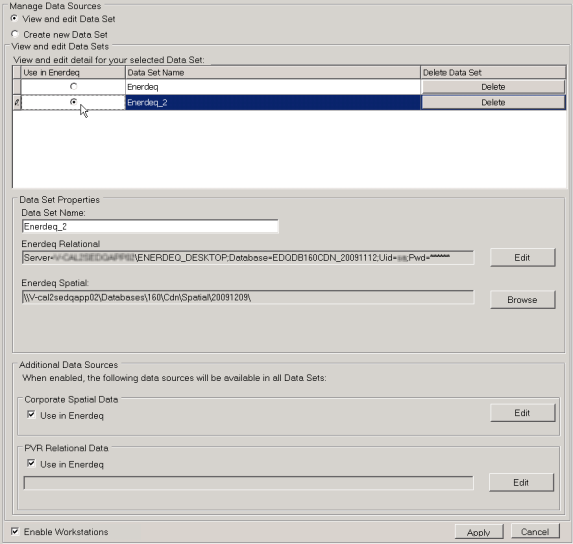
10. In the top of the screen click View and edit Data Set, and then using the View and edit details... pane, select the radio button in the Use in Enerdeq column for the data set you created above.
Tip: Before deleting any data sets remember that it's a good idea to keep the previous data set as well as the one you just installed above so that you can revert to the previous one if required.
Note: When you delete a data set, the data source with which it's associated is also deleted.
