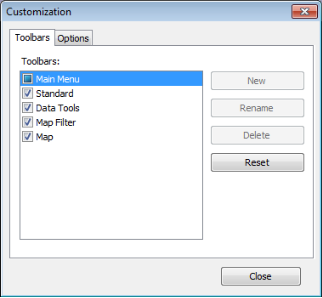
Select which toolbars appear in various windows and select toolbar display properties. You can't customize the IHS EDIN Desktop toolbar. Modified settings only apply to the specific window from which you launched the Customization dialog box, and only for the current session.
For details on docking the map layer legend, see Related topics below.
To show or hide toolbars
1. Using the window to modify, from the Tools menu, click Customize.
The Customization: Toolbars dialog box appears.
2. Select whether the Standard toolbar ( ,
,  ,
,  ), Data Tools (
 ,
,  ,
,  ,
,  ,
,  ,
,  ,
,  ,
,  ), and toolbars specific to the current window appear, and then click Close.
Depending on the window from which you launched the Customization dialog box, different toolbars may be available; for example, Browse (Template,  ,
,  ), or Graph (Mode, Template,
  ,
,  ,
,  ,
,  , Graph/Spreadsheet).
To set menu and toolbar behavior
1. Using the window to customize, from the Tools menu, click Customize, and then click the Options tab.
The Customization: Options dialog box appears.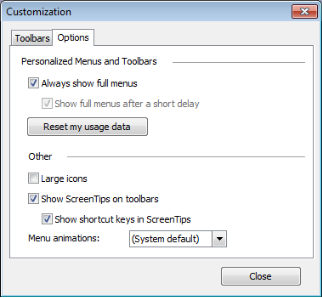
2. Select whether to show every item that appears in a menu each time it's selected; otherwise, only common selections and those you frequently make appear. Clicking Reset my usage data erases all your menu selection history so that all menu items appear the first time you display each menu.
3. Select the size of icons displayed in toolbars, whether to display ScreenTips when you hover your cursor over toolbar items, and select display effects for menus such as whether they fade in, and then click Close.
These settings only apply to the specific window from which you launched the Customization dialog box, and only for the current session.
| Changing default units | Positioning the layer legend |