 , or click Save As if you've modified a map that's already saved to disk and want to save it with a different name.
 Save either a map file that you use in future EDIN sessions, or an image of your map that you can paste into third-party applications. Map images can be in PDF. raster (GIF, JPG, BMP, PNG), or vector (EMF, WMF) format.
Save a file that defines your current map extents, map scale, selected layers, and customizations for use in a future session. When you open the map file, the latest data (subject to the above criteria you've set) is retrieved from the database.
Save queries you've attached to the map using the Map window by selecting the query in the Layer Legend, and then selecting File > Save Query.
Output maps in PDF or picture formats. For details, see Related topics below.
To save a map in EDIN format
1. Using the Map window, from the File menu, click Save , or click Save As if you've modified a map that's already saved to disk and want to save it with a different name.
If you have multiple Map windows open and click Save, only the map in the Map window that's currently in focus is saved.
2. Browse to the desired location, type a file name, and then click OK.
To save the map in a format that you can import into third-party applications, from the Save as type drop-down list, select either Bitmap files or EMF files.
To paste a map in raster or vector format
1. From the Edit menu, click Copy Map Image.
The image is copied to your Windows clipboard.
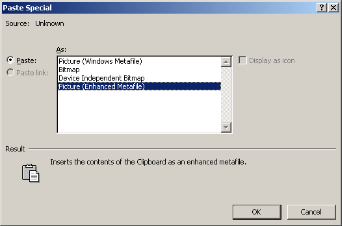
2. Launch the desired third-party application and using that application's Edit menu, click Paste Special, and select either Bitmap or Enhanced Metafile format as depicted, and then click OK.
| Opening maps | Setting advanced map printing options |
| Setting basic map printing options | Printing maps |