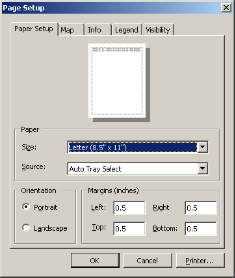
Configure basic map printing options such as paper size, map titles, the company logo to display, and items to include in the printed map legend. The options that appear below are also available from the Visibility drop-down menu when using the Print Preview dialog box in Layout mode (see Related topics below).
The settings configured below only apply to the current Map window and only persist for the current session.
To set advanced map printing options, such as the placement and size of various map objects, map scale, and more, see Related topics below.
To set basic map printing options
1. From the File menu, click Page Setup.
The Page Setup: Paper Setup dialog box appears.
2. Select basic page layout options (paper type, orientation, and margins), and then click the Map tab.
The Page Setup: Map dialog box appears.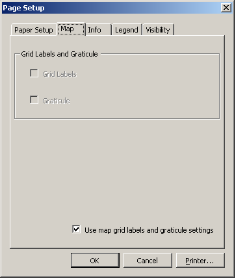
3. Select Use map grid labels and graticule settings so that the grid label and graticule appear on the printed map only if enabled in the Map window, or clear this option and select or clear the Grid Labels and Graticule checkboxes so the grid labels and graticule are displayed or hidden on the printed map regardless of whether they're displayed in the Map window.
4. Click the Info tab.
The Page Setup: Info dialog box appears.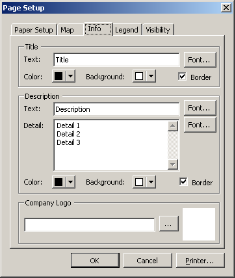
5. Type a map title and description.
6. For text fields, do the following:
Click Font, and select the text family, size, and style.
Click  to select the text color and the background color for the text box.
Click Border to draw a bounding box around text boxes.
Click  and browse for a company logo.
7. Click the Legend tab.
The Page Setup: Legend dialog box appears.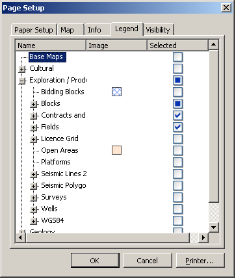
8. From all of the layers available to the Map window, select those to display on the printed map. By default, only those layers already selected in the Map window are selected in the Page Setup: Legend tab. Click to expand parent nodes and select whether to include their child layers, or select the parent node to automatically include all of its child layers.
The legend on the printed map resizes depending on the number of items you include above.
If you select many items, the legend may cover a portion of the map. To prevent this, either select fewer items above, or resize the legend while setting advanced map printing options (see Related topics below). If there are legend items that don't appear once the legend has been resized, the number of items that aren't displayed is listed in the last entry that appears in the legend.
The Page Setup: Visibility dialog box appears.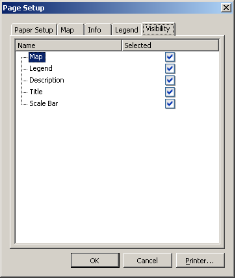
9. Select which map elements appear on the printed page.
Click Printer to define a printer other than your Windows default printer with which to print the map.
| Setting advanced map printing options | Printing maps |
| Saving maps |