 or Zoom Out
  .
.Zoom the map in or out by a factor (two, four, six, or ten), zoom in to a rectangle you draw, zoom to the extents of the map, or zoom to the previous map extents.
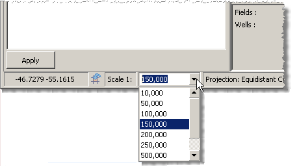
Change the map to a specific scale by selecting a map scale from a list or by typing the scale in a text box.
The default map projection changes as your map scale changes.
| Zoom the map out to full view | Zoom in to a custom rectangle |
| Zoom or pan the map back to the previous extent | Zoom the map |
| Zoom the map to a custom scale |
From the Map menu, click either Zoom In or Zoom Out .
The map zooms in or out by a default factor of two. Click the arrow ( ) right of the zoom button and select a factor of four, six, or ten.
To zoom in to a custom rectangle
1. From the Map menu, click Zoom  .
.
2. Drag a rectangle that defines the new map extents on the map.
To zoom the map to a custom scale
1. Click the drop-down arrow next to the scale display in the status bar at the bottom of the map.
2. Select a scale
from the drop-down list between 10,000 and 10,000,000
OR
Type a scale in the text box.
To zoom the map out to full view
From the Map menu, click Full View  .
.
To zoom or pan the map back to the previous extent
From the Map menu, click Last Extent  .
.
| Panning maps | Changing map projections |