 beside Add to Map
  , and from the drop-down list, click either New Map, a currently open map, or Browse Saved Map.
 Attach the results of a query to a new, currently open, or saved map as a separate map layer and then work with the query items in the Map window and the same map functionality available to other map layers. Although default symbology, scaling, and labeling already configured for standard map layers is applied to query layers attached to the map, you can change these settings for the attached query layer to differentiate it from the standard layers.
Clear visibility for the parent layer upon which the query is based to inspect on only the returned query items.
Save queries you've attached to the map using the Map window by selecting the query in the Layer Legend, and then selecting File > Save Query.
Items selected on the map can be saved directly as a unique map layer without having to pass them out to Query Editor or another Output window first. See Related topics below.
The map automatically zooms to the extents of a query when it's added to the map, and refreshes the zoom extents when the extents of the query change.
To attach queries to maps
1. After building your query, in the Results pane, select one or more results to attach to the map as a layer (CTRL+CLICK or SHIFT+CLICK for multiple selection).
2. Using Query Editor, in the IHS EDIN Desktop toolbar, click the arrow beside Add to Map , and from the drop-down list, click either New Map, a currently open map, or Browse Saved Map.
If you've already attached a query layer to a map that's still open, you can update the previously attached layer with the latest query results by clicking Update Map  instead. If you have multiple maps currently open to which query layers are attached, the map that appears in the Add to Map drop-down list with a checkmark is the one that's updated. You can click a different map name in that drop-down list to make it the active map.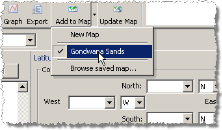
The attached query layer appears in the Layer Legend of the Map window under the My Queries node and using the Map window, you can set unique inspect criteria and display properties for each query layer regardless of the inspect criteria set for the query's parent layer. For details, see Changing map symbols and Labeling Items on maps in the Related topics section below.
3. Click  to enable Inspect mode
  , and then view inspection details on the Inspect bar (see Related topics below).
| Displaying symbols on maps | Making layers inspectable |
| Creating map layers of selected items |