 .
.Select attributes to symbolize on maps. The type of criteria you can change depend on the attributes in the map layer you select.For example, for the Contracts and Applications layer, symbolize by Parent Participants to symbolize using polygons that denote the contract and application areas of parent participants you specify. For details on labeling layers, see Related topics below.
Configure unique symbology for queries you add to the map to differentiate the items in that layer from the surrounding standard map items.
To display symbols on the map
1. Using the Map window, click to select the layer to symbolize in the Layer Legend.
2. From the Layers menu, click Symbolize .
The Symbolize dialog box appears.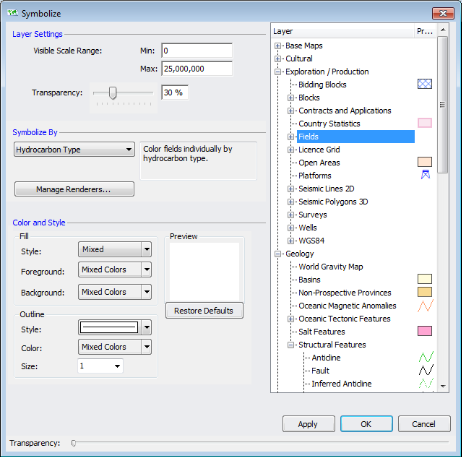
3. In the Layer pane, select the layer for which to configure display properties.
4. Select the display properties based on the following:
Layer Settings - type the range for the map scale at which the layer symbology should appear, and then drag the Transparency slider to set the opacity of the symbology. You can watch the transparency change in the Layer pane in the right portion of the Symbolize dialog box while you move the transparency slider.
Symbolize By - the attributes by which to render symbology depend on the layer selected. For certain layers such as the Blocks and the Contracts and Applications layers, the Choose Values button is active. Click it to display the Choose Values to Symbolize dialog box where you select specific participant or operator names by which to symbolize, and whether to symbolize each item individually or as a group.
Color and Style - the formatting options vary depending on whether the symbology you're changing is a point, line, or polygon.
5. Either click Apply to save the changes you made above and then continue to change the symbology for other layers, or click OK to save the changes and automatically close the Symbolize dialog box.
Drag the slider to the right to reduce the opacity of the dialog box so that objects below the dialog box become visible.
Using the Layer Legend, select a layer and then click Label  to display the Label dialog box and change attribute label details.
The spatial layer configuration you create is saved along with the map.
| Labeling items on maps | Adding annotations to maps |
| Attaching queries to maps |