 or Zoom Out
  .
.Zoom the map in or out by a factor (2, 4, 6, etc.), zoom in to a rectangle you draw, zoom to the extents of the map, zoom to the previous map extents, or zoom to either the extents of a query added to the map, or to the extents of an individual layer within that query. When a query is initially added to the map, the map zooms to the extents of that query. When the query is updated and its extents change, the map zoom extents change accordingly.
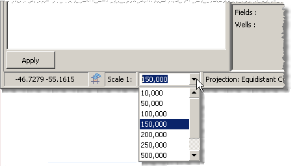
Change the map to a specific scale by selecting a map scale from a list or by typing the scale in a text box.
The default map projection changes as your map scale changes.
| Zoom the map out to full view | Zoom in to a custom rectangle |
| Zoom or pan the map back to the previous extent | Zoom the map |
| Zoom the map to a custom scale | Zoom to extents of a query or query layer |
Zoom to extents of a query or query layer
With a query added to the map (see Related Topics below), using the Map Legend, right-click either the query group, or an individual layer within that query, and from the context menu, click either Zoom to Query Extent, or Zoom to Layer Extent.
From the Map menu, click either Zoom In or Zoom Out .
The map zooms in or out by a default factor of two. Click the arrow ( ) right of the zoom button and select a factor of four, six, or ten.
To zoom in to a custom rectangle
1. From the Map menu, click Zoom  .
.
2. Drag a rectangle that defines the new map extents on the map.
To zoom the map to a custom scale
1. Click the drop-down arrow next to the scale display in the status bar at the bottom of the map.
2. Select a scale
from the drop-down list between 10,000 and 10,000,000
OR
Type a scale in the text box.
To zoom the map out to full view
From the Map menu, click Full View  .
.
To zoom or pan the map back to the previous extent
From the Map menu, click Last Extent  .
.
| Panning maps | Changing map projections |
| Attaching Queries to Maps |