 .
.Once you've set your print page options, you can print the map to a plotter or printer. Enerdeq doesn't support tiled printing, in which a large map is automatically tiled across multiple pages. If you need to used tiled printing, using the Map window zoom into a portion of the overall map that will fill an 8.5 x 11" page and print it, then zoom into the next area to fill the next page and print it, and so on.
Printing 600 DPI requires a lot of memory. The following steps are recommended to optimize printing large scale maps:
Restart your computer.
Keep other applications aside from Enerdeq Desktop closed, and for Enerdeq, display only the Map window that contains the map to print. Keep all other Enerdeq windows closed.
Depending on your operating system, increase the allocated virtual memory size as follows:
32-bit - 4096 MB
64-bit - 8 GB
Reduce the complexity of maps by clearing transparency or by turning off layers you don't need to print.
To print the map
1. Using the Map window, from the File menu, click Print .
2. Click OK and the map prints
OR
Click Export in the Print dialog box to output the map in one of the following formats: PDF, BMP, EMF, GIF, JPEG, PNG, TIFF, WMF.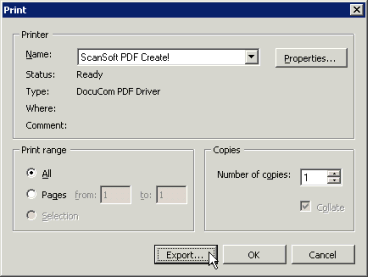
If exporting in PDF format, ensure your Adobe print driver page scaling options are disabled to preserve the map scale.
| Saving maps | Setting basic map printing options |
| Setting advanced map printing options | |
|
|
|
|
|