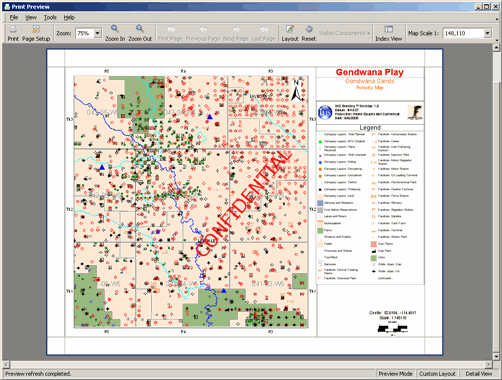
Click the Layout option while in Print Preview mode to customize the map by dragging, dropping, resizing, and hiding map objects. Layout options only apply to the current Map window and only persist for the current session.
To set basic map printing options, such as page orientation, map titles, and legend display, see Related topics below.
To set advanced map printing options
1. From the File menu, click Print Preview.
The Print Preview dialog box appears.
CTRL+Mouse wheel Up or Down to zoom in or out.
2. Click Layout ( ) to switch to a view where you customize the final look of your printed map by dragging and dropping, resizing, and showing and hiding various map objects.
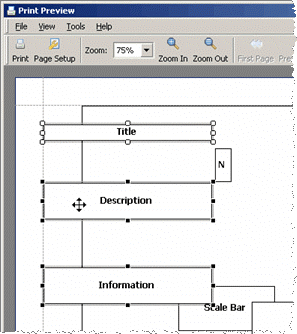
3. The following functionality is available in Layout mode:
Click one or more objects and drag them to a different location (depicted above). To align dragged items precisely, from the View menu, click Snap to Grid.
Drag the handles of an object to resize it. If more than one object is selected, they're all resized at once.
Drag an object to a margin to anchor it to that margin so that it maintains its position proportionate to the page size -even if you change paper size.
If map objects aren't anchored to a page margin and you either change paper orientation, paper size, or resize the map, objects don't maintain their positions relative to the page. They may instead appear off of the page, in which case you must drag them to the desired location on the new page.
From the Visibility menu, click  and select whether to hide or show various objects on the printed map. Hidden objects don't appear on the printed map or in the Print Preview dialog box.
Right-click a map object and from the shortcut menu, select either Send to Back or Bring to Front to place it behind or in front of other map objects. This option isn't available for the Information box.
From theMap Scale menu, click and select a different map scale. The map scale isn't limited by the map scale displayed in the Map window.
To revert to the default map layout, click Reset ( ). Even if you click Reset , Custom Layout still appears in the bottom right of the Print Preview dialog box to indicate the mode in which you're still working.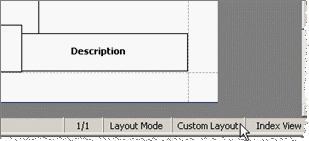
Before exiting Layout mode below, click Index View  to display the map as a blank box instead of rendering all of the map layers.
4. Click Layout again to exit Layout mode and return to the Print Preview main screen to see how your map looks before printing it.
| Setting basic map printing options | Printing maps |
| Saving maps |