 , use the shortcut menu to send an annotation in front of or behind other annotations.
Use the Annotation toolbar and the shortcut menu to change the line styles and thickness, fills, symbols, and more that define how an annotation looks.
When the Select Annotation Tool is active , use the shortcut menu to send an annotation in front of or behind other annotations.
The following tasks are covered in this topic:
|
To change the properties of text To change the properties of a rectangle, circle, polygon, or ellipse |
 To change the properties of a
point
To change the properties of a
point
1. From the Map menu, point to Annotation,
and then click Select .
2. Click the point to change.
The point is highlighted on the map. Note: CTRL+CLICK to select multiple points.
3. Right-click the map and from the shortcut menu, click Properties.
The Properties: Marker dialog box appears.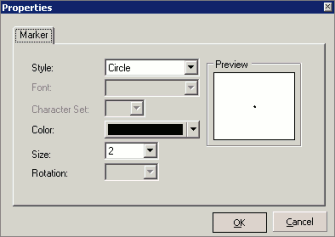
4. Select the display properties, and then click OK.

To change the properties of a
line
1. From the Map menu, point to Annotation,
and then click Select.
2. Click the line to change.
The line is highlighted on the map.Note: CTRL+CLICK to select multiple lines.
3. Right-click the map and from the shortcut menu, click Properties.
The Properties: Pen dialog box appears.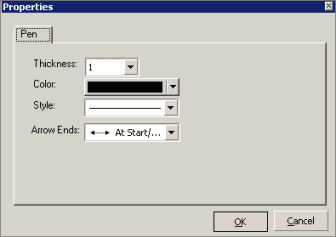
4. Select the display properties, and then click OK.
To change the properties of a
rectangle, circle, polygon, or ellipse
1. From the Map menu, point to Annotation,
and then click Select .
2. Click the annotation to change.
The annotation is highlighted on the map.Note: CTRL+CLICK to select multiple annotations.
3. Right-click the map and from the shortcut menu, click Properties.
The Properties: Fill dialog box appears.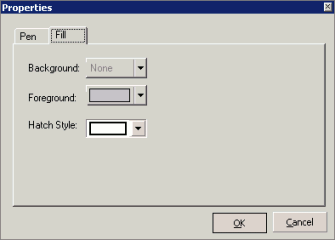
4. Select the fill properties.
5. Click the Pen tab.
The Properties: Pen dialog box appears.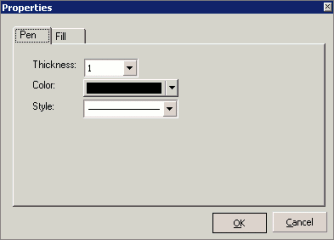
6. Select the pen properties, and then click OK.
Note: The Properties dialog
box for circles also contains a Dimensions tab with which to change the size or location of the circle by entering
a radius or the coordinates for the center point.
To change the properties of text
1. From the Map menu, point to Annotation,
and then click Select.
2. Click the text to change.
The text is highlighted on the map.Note: CTRL+CLICK to select multiple text annotations.
3. Right-click the map and from the shortcut menu, click Properties.
The Properties: Text dialog box appears.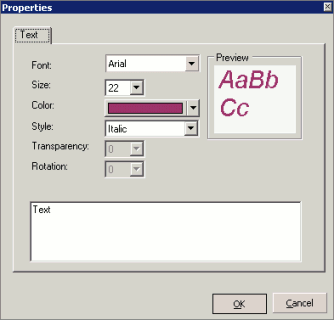
4. Select the text properties, and then click OK.
Note:
Change the that appears on the map
by typing in the text box that appears in the lower portion of the Properties: Text dialog box.
