 , use the shortcut menu to send an annotation in front of or behind other annotations.
The total length of lines, and the size of rectangles, circles, polygons and ellipses is related to map scale. The size of these elements on the screen changes as you zoom the map. Resize these elements relative to the map by dragging a vertex. Circles can be resized by typing a radius length in the Properties dialog box.
The size of points and text remains constant as you zoom the map in or out. You can change the size of these elements by editing their properties.
When the Select annotation tool is active , use the shortcut menu to send an annotation in front of or behind other annotations.
The following tasks are covered in this topic:
 To change the total length of
a line
To change the total length of
a line
1. From the Map menu, point to Annotation,
and then click Select .
2. Click the line to change.
3. Drag a vertex of the bounding rectangle to change the total length of the line.

1. From the Map menu, point to Annotation,
and then click Select .
2. Click the rectangle to change.
3. Drag a vertex of the rectangle to the new size.
To resize a circle, ellipse,
or polygon
1. From the Map menu, point to Annotation,
and then click Select .
2. Click the circle, ellipse, or polygon to change.
3. Drag a vertex of the bounding rectangle to the new size.
To resize a circle by typing
a radius length
1. From the Map menu, point to Annotation,
and then click Select .
2. Click the circle to resize.
3. Right-click the circle and from the shortcut menu, click Properties.
The Properties: Dimensions dialog box appears.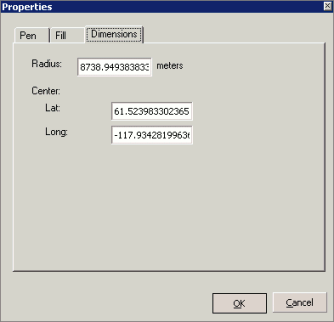
4. Click the Dimensionstab.
5. Type a new radius to resize the circle, and then click OK.
1. From the Map menu, point to Annotation,
and then click Select .
2. Click the point or text to resize.
 Note: CTRL+CLICK to select multiple points or text.
3. Right-click the map and from the shortcut menu, click Properties.
The Propertiesdialog box appears.
4. Specify a different size in the Size box, and then click OK.
