Merging Harmony Projects
Merging Harmony projects is accomplished by importing the data from one project file into the other.
Note: You can only import data from one project file at a time. The Company Details, Contact Information, and GIS Annotations / Layers are never merged and are kept in the project. Refer to Options to set merge properties.
Data is imported for all entities from the following areas (including wells and layers) during the merging procedure:
|
|
|
|
|
|
|
|
|
|
|
To merge two Harmony projects:
1. Open a Harmony project.
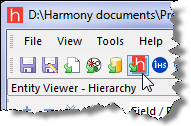
2. Click
the Import Harmony Project icon
( ).
).
The Open dialog box opens.
3. Select a Harmony project file; then click Open.
The Link Imported Wells to Existing Wells dialog box opens.
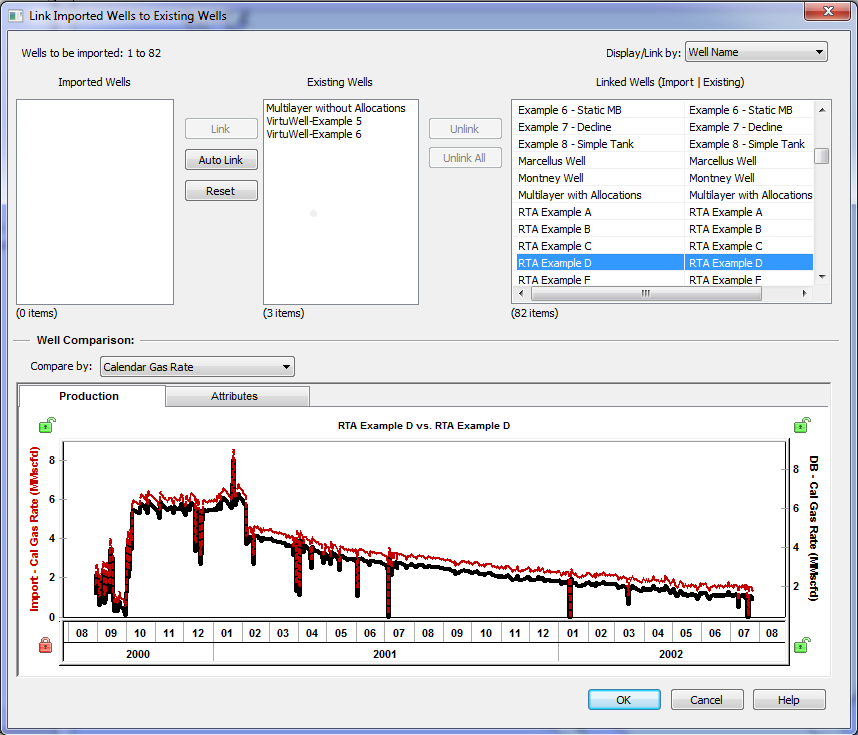
Note: Wells in the existing and incoming projects that contain the same Database IDs cannot be unlinked.
4. (Optional) Map the incoming entities as required; then click OK. Data associated with the incoming Harmony project file is imported into the open project.