Options
 Click to see Subtopics:
Click the Options icon ( )
to open the Options dialog box. Clicking headings in the selection tree
on the left will display various categories of options.
)
to open the Options dialog box. Clicking headings in the selection tree
on the left will display various categories of options.
Two buttons are always available at the bottom of the Options dialog box:
1. Export Settings — click this button to save your Options settings as a file for use in another project.
2. Import Settings — click this button to open an existing Harmony settings file.
General
This section displays options to include a company's details and contact information (in the event you are doing work for a second party):
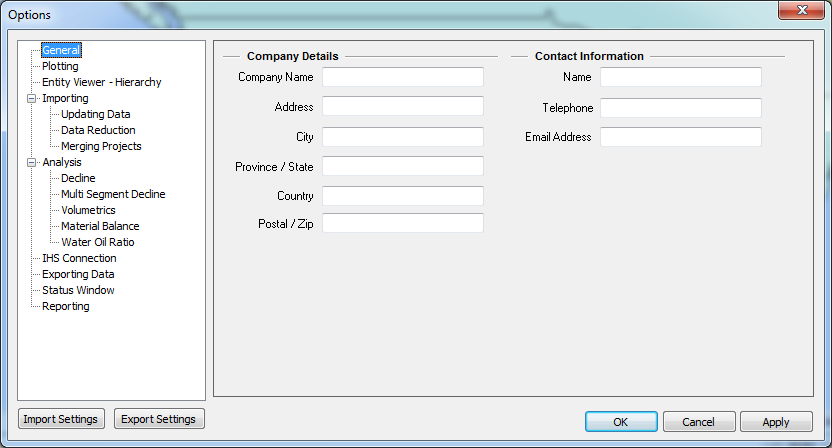
- Company Details — enter the company's name and address information. The company name is displayed on printed plots.
- Contact Information — enter the name and contact details of the contact employee at the company.
Plotting
These options determine the appearance of plots generated in Harmony:

- Line Colors — select colors for production & injection and flowing pressure properties.
- Line Styles — select line styles for production & injection properties.
- Symbols — select the symbol, color, and size of the datum, run depth, and wellhead.
Entity Viewer - Hierarchy
These options determine the structure of the Entity Viewer - Hierarchy pane.

Note: For information on creating and modifying hierarchy structures, see Add / Modify Hierarchy Structure.
Importing
These options determine Harmony's behaviour when importing wells.
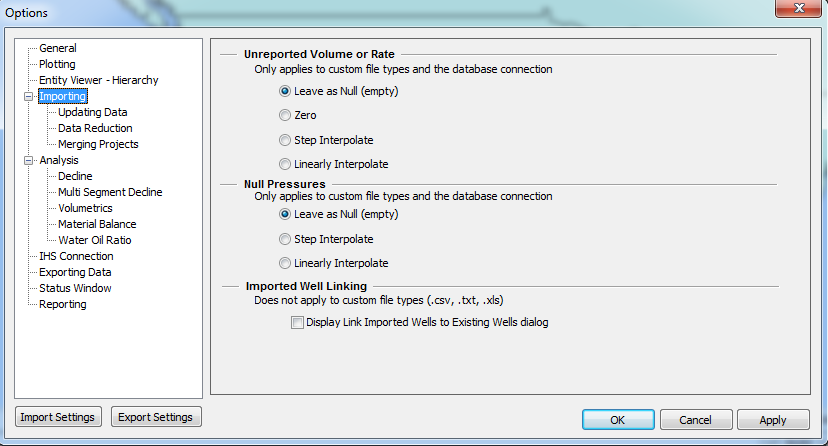
Unreported Volume or Rate (All Fluids)
- Leave as Null (empty) — assigns no value to volumes / rates whose true value is not reported.
- Zero — assigns a value of "0" to volumes / rates whose true value is not reported.
- Step Interpolate — carries over the preceding value to an unreported volume. This creates a step-like plot.
- Linearly Interpolate — assigns a value to an unreported volume that is equidistant from the preceding and following reported values. This creates a linear plot.
Null Pressures (All Gauges)
- Leave as Null (empty) — assigns no value to pressures whose true value is not reported.
- Step Interpolate — carries over the preceding value to an unreported pressure. This creates a step-like plot.
- Linearly Interpolate — assigns a value to an unreported pressure that is equidistant from the preceding and following reported values. This creates a linear plot.
Imported Well Linking
- Display Link Imported Wells to Existing Wells dialog — opens the Link Imported Wells to Existing Wells dialog box every time data is imported from a markup file into a non-empty database.
Updating Data
These options determine Harmony's behaviour when importing wells into a database that already contains well data.

Production Data
- Do not overwrite existing data — does not overwrite data, but imports new production data (including data that had been set to 0, null, or had been interpolated).
- Overwrite/Merge existing data — imports all new production data and overwrites data with the same dates as those being imported.
- Append from last production date — imports only the production data from the last production end date.
Static Pressure
- Ignore tests with dates that already exist — does not import tests that have the same dates, but imports all other tests.
- Import tests with dates that already exist — imports all new static pressure data and will overwrite tests with the same dates as those being imported.
Fluid Analysis Tests
- Ignore tests with dates that already exist — does not import tests that have the same dates, but imports all other tests.
- Import tests with dates that already exist — imports all new tests and overwrites tests with the same dates as those being imported.
Wellbore Configuration
- Do not overwrite existing configurations — does not import wellbore configurations.
- Overwrite/Merge existing configurations — imports all new wellbore configurations and overwrites tests with the same data as those being brought in. (not applicable to multilayered wells.)
Attributes and Properties
- Update new attribute data — only new attribute data is imported.
- Update new and existing attribute data — updates all data, even if the data currently exists in the project.
- Discard all incoming attribute data — does not import attribute data.
Analysis Data
- Append incoming analyses — adds all analyses, even if analyses with the same name exist in the project. If duplicate analyses / worksheets exist, the analysis / worksheet names are appended with a number.
- Discard incoming analyses — does not import analyses.
Data Reduction
These options determine how Harmony reduces the amount of incoming well data during an import operation.

Data Reduction Filter
- Always Display the Data Reduction Dialog — opens the Data Reduction dialog box every time well data is imported into the project.
- Display the Data Reduction Dialog when threshold is reached — opens the Data Reduction dialog box only when an incoming well has more than the specified threshold number of production rows.
- Threshold — the number of rows of production data in a well that causes the Data Reduction dialog box to open.
- Gas Rates — the number below which gas values are treated as shut-in when automatically detecting flowing / shut-in periods in data reduction.
- Liquid Rates — the number below which liquid values are treated as shut-in when automatically detecting flowing / shut-in periods in data reduction.
Data Reduction Filter Defaults
- Arithmetic Filter — default value for all periods using the arithmetic filter.
- Log Filter — default value for all periods using the log filter.
Data Reduction Use in Period Defaults
- Flowing Periods — sets flowing period defaults to the filter values specified in the Data Reduction Filter Defaults section.
- Shut-In Periods — sets shut-in period defaults to the filter values specified in the Data Reduction Filter Defaults section.
Merging Projects
These options determine Harmony's behaviour when merging data from one Harmony project file into another.
While it is likely that multiple Harmony projects contain the same well(s), Harmony cannot contain duplicates of a well that have the same database ID. Therefore, when merging two Harmony files, you must specify which instance of the well you wish to keep; the other is discarded. The same logic is applied to wells that have been linked manually during the Merge operation.
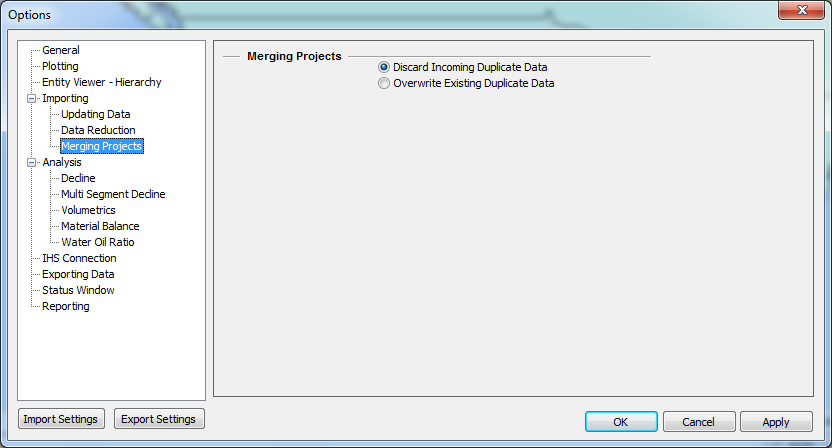
- Discard Incoming Duplicate Data — Harmony does not import duplicated data, but instead retains the existing data.
- Overwrite Existing Duplicate Data — Harmony imports all incoming duplicated data, and overwrites the existing data.
Note: These options apply to all wells in a project and cannot be modified for individual wells.
Analysis
These options determine the default workflow that runs when a gas or oil well is launched:
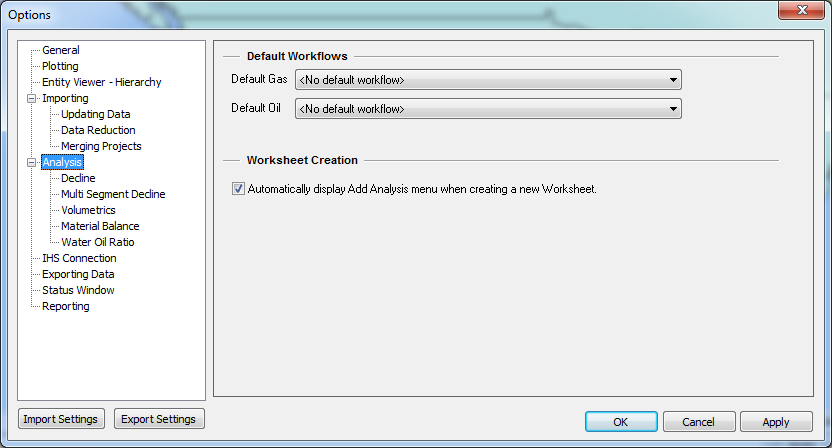
- Default Workflows — sets the default workflow that runs when a gas or oil well is launched.
- Worksheet Creation — when this option is selected, the Add Analysis menu is displayed in the Analysis Manager after you create a worksheet, and displays a list of the available analyses.
Decline
These options set the initialization of new decline analyses and constrain the use of Best Fit tools:
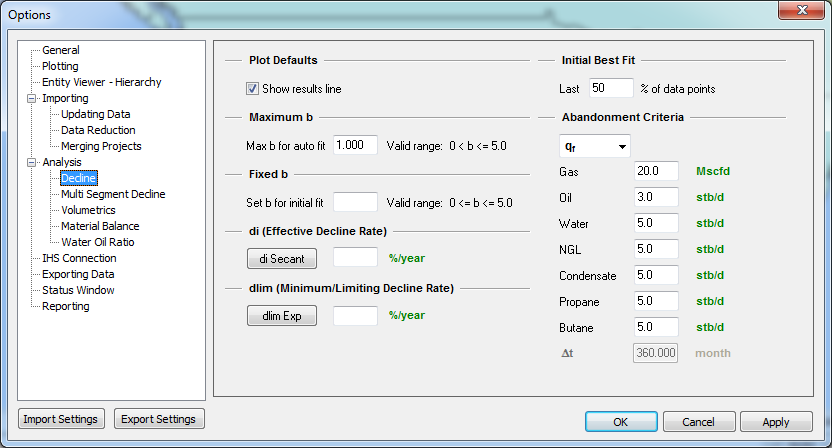
- Show results line — displays the results line by default when an analysis is created.
- Fixed b/di — when a new Decline is created, values specified for b and di are used in place of determining these parameters through Best Fit. A blank cell is used when a preset value is not desired. If both b and di are specified, only qi remains to be determined, and the last rate in production will be used in place of the Best Fit routine.
- dlim — when a value for dlim is specified, the calculation method is set to modified hyperbolic (either dlim - ∆t | Qf or dlim - qf | Qf depending on the abandonment criteria).
- Initial Best Fit — when creating an analysis, uses the last specified percentage of the data to initialize the analyses.
- Abandonment Criteria — select the criteria for truncating a decline: final rate (qf) or forecast duration (∆t). Set the default value(s) for abandonment criteria.
Multi-Segment Decline
These options set your gas and liquid defaults, as well as your best-fit criteria.
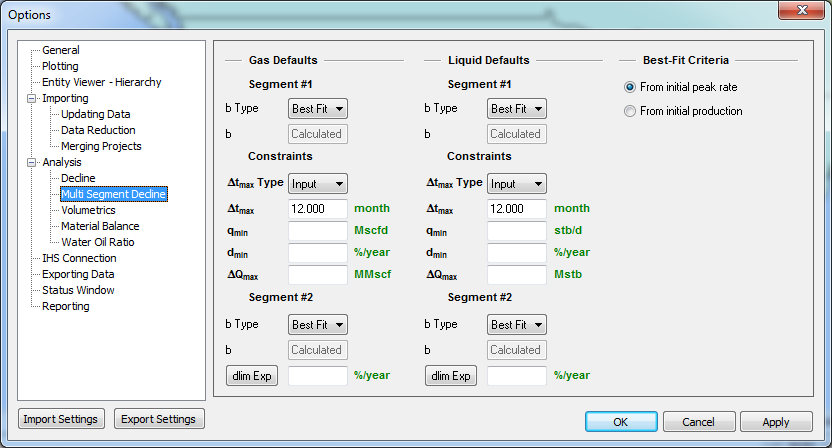
Gas Defaults
- Segment #1: select your b type from the Best Fit drop-down menu (
 ): Best Fit, Input, or Custom.
If you select Input, you'll also need to enter your b value (i.e., between 0 and 5 inclusively).
If you select Custom, you'll need to select your custom attribute from the b drop-down menu. - Constraints: select your
 from the Input drop-down menu (
 ): Input or Custom. A default value of 12 months is used for
  . You must enter at least one constraint within this section.
 - Segment #2: same as segment #1.
- dlim Exp: click this button to toggle between dlim exponential and dlim hyperbolic. If there is no value in the dlim exp field, a limiting decline calculation will not be performed on the second segment. If you click the toggle button, any values entered will be saved. The current selection will be used.
Liquid Defaults: see Gas Defaults above
Best-Fit Criteria: select either:
- from initial peak rate (default setting) - equivalent to the highest rate that the entity has produced throughout its entire history
- from initial production - the first production data point for that entity
Volumetrics
These options determine the behaviour of Volumetrics analyses:
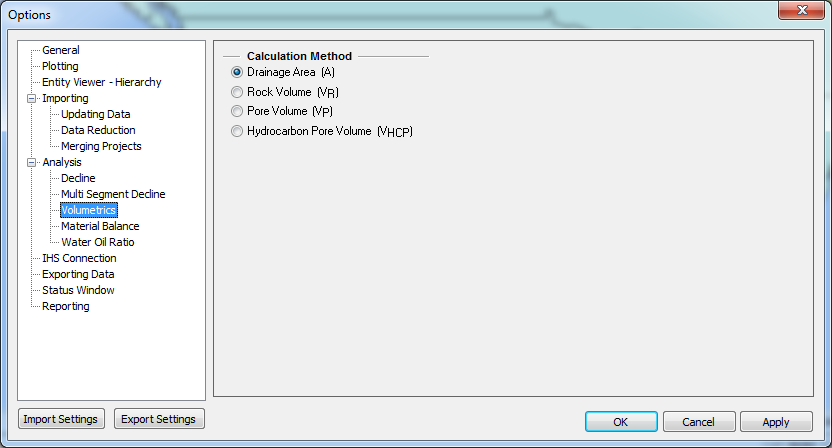
Calculation Method — sets the default calculation method used when a Volumetrics analysis is created.
Material Balance
These options determine the behaviour of Material Balance analyses:
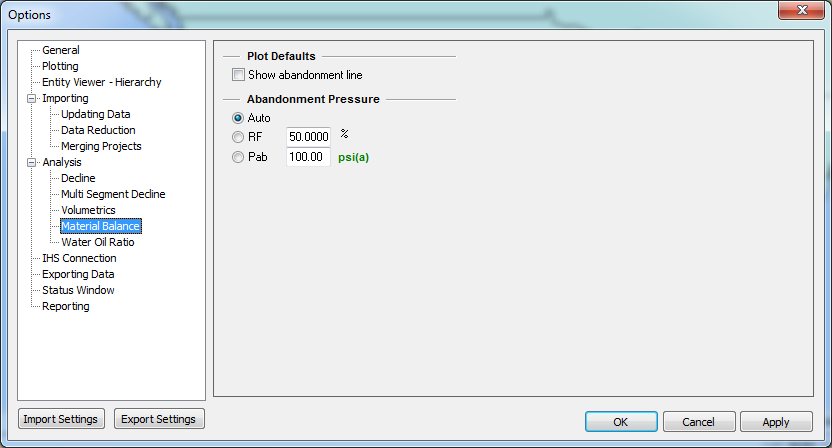
- Show abandonment line — displays the results line by default when an analysis is created.
- Abandonment Pressure — sets which “Abd Calc” method (in the Analysis Parameters view of the Analysis tab) is used by default when an analysis is created.
Water Oil Ratio
These options determine the behaviour of Water-Oil Ratio analyses:
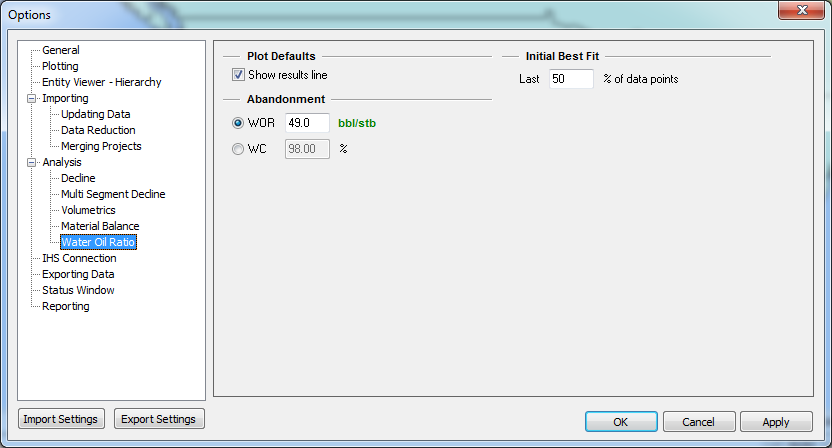
- Show results line — displays the results line by default when an analysis is created.
- Abandonment — sets the default water-oil ratio (WOR) or water cut (WC) abandonment value when an analysis is created.
- Initial Best Fit — when creating an analysis, uses the last-specified percentage of the data to initialize the analyses.
IHS Connection
These options determine the behaviour of the direct connection to IHS:

- Save Login Information — saves your username and password, so you can log into IHS without manually entering your login credentials.
- Do not show the credentials dialog box — when checked, this option connects to IHS without opening the login dialog box.
Exporting Data
These options determine which attribute is written with the analyses when exporting analyses to ARIES, PHDWin, or Energy Navigator. By selecting a consistent attribute, you can align your data between applications.
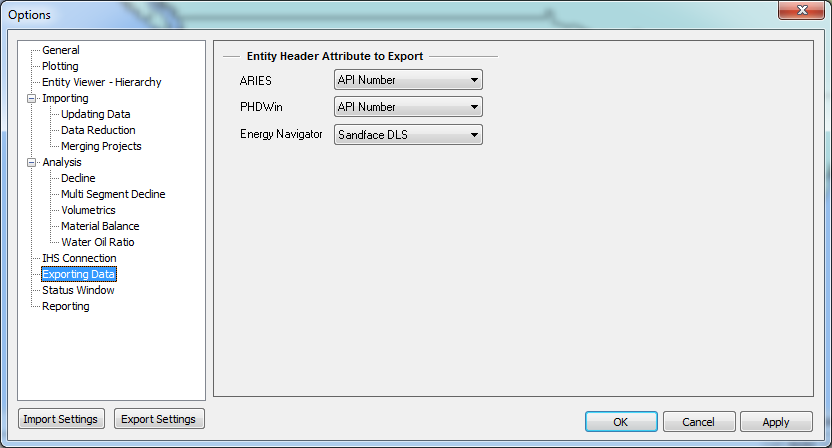
The attributes available for selection are:
- API Number
- Entity Alias Name
- Entity Name
- Entity Number
- Sandface DLS
- Sandface NTS
Status Window
These options determine the behaviour of the Status Window:

Only Show the Status Window For — displays the Status Window only when the checked events occur.
Reporting
This section displays the default reporting options for the print queue, and for each of the analysis method types:
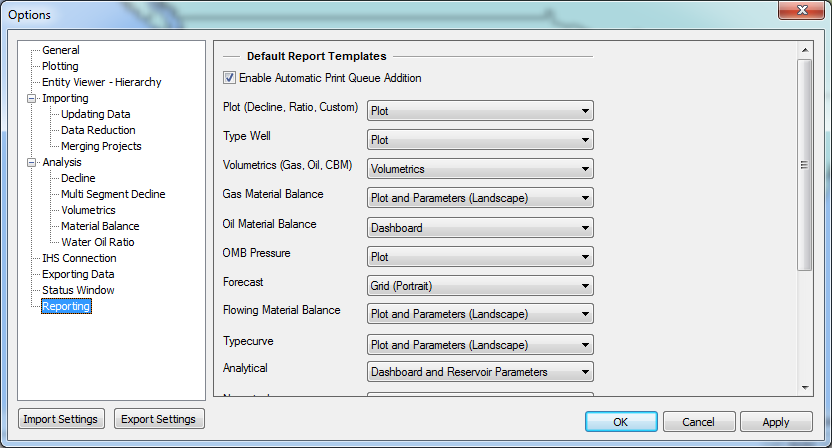
- Enable Automatic Print Queue Addition — when checked, this option adds a report to the print queue in the Reporting tab as soon as the worksheet is created.
- [Analysis method name] — displays the report template options for each of the analysis method types.