Configuring the Database Connection Tool
Harmony uses the Database Connection tool to facilitate importing well production and reservoir data from your company's proprietary database into the Harmony database.
After opening your database (File, Import, From Database) the Database Connection window opens.
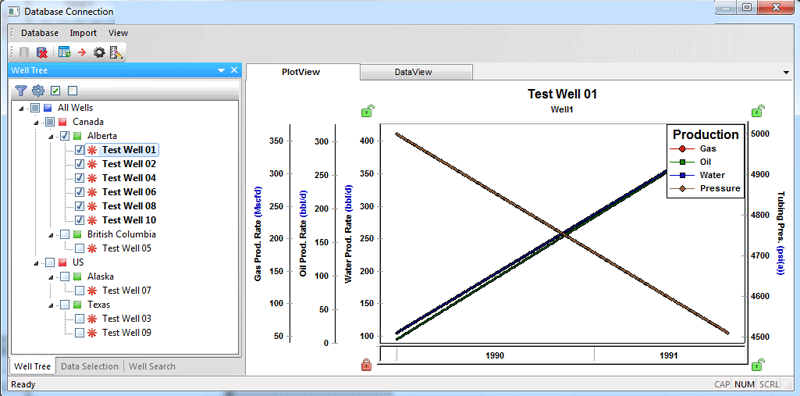
To configure the Database Connection Tool:
1. Open the Database Connection window.
2. Click
the Options icon ( ) on the toolbar.
The Database Import Settings dialog box opens.
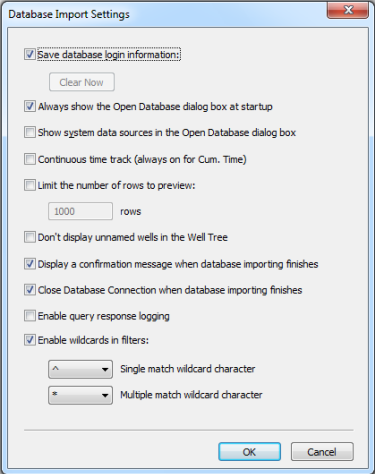
3. Make your modifications from the following options:
- Save database login information — saves the options you select in the Open Database dialog box, which speeds up your database login time.
- Always show the Open Database dialog box at startup — opens the Open Database dialog box each time you connect to a database. If this option is deselected, Harmony connects to your database according to the previous settings.
- Show system data source in the Open Database dialog box — displays system DSNs in the Open Database dialog box's Data Source drop-down list.
- Continuous time track — fills in the gaps in production data, if there are missing rows to create a continuous time track.
- Limit the number of rows to preview — limits the number of rows of well data that are displayed in the DataView tab to the number you set. (Note that Harmony imports all well data regardless of this preview limit.)
- Don't display unnamed wells in the Well Tree — disables the display of unnamed wells in the Well Tree during the import process. (Unnamed wells are displayed as a solitary asterisk (*) without a well name.)
- Display a confirmation message when database importing finishes — opens a confirmation popup message stating that the import has finished.
- Close Database Connection when database importing finishes — closes the Database Connection dialog box when an import has successfully completed.
- Enable query response logging — outputs the time it takes to run all queries in the Status Window.
- Enable wildcards
in filters — enables you to use wildcards in the Add / Remove
Well Filters dialog box when searching / querying.
- Single match wildcard character — matches one character between your specified values. For example, C^B would return any text strings that have one character between C and B (e.g., CAB, CCB, etc.).
- Multiple match wildcard character — matches multiple characters between your specified values. For example, C*B would return any text strings that have multiple characters between C and B (e.g., CAB, CCB, CABB, etc.).
4. Click OK to accept your changes.