Filtering Wells
If your database has a large number of wells, or if you only want to see a subset of the wells in the database, you can filter the wells displayed in the Well Tree. In addition to the default filter columns, any custom attributes that are a "text" type can also be used for filtering.
To filter wells in the Well Tree:
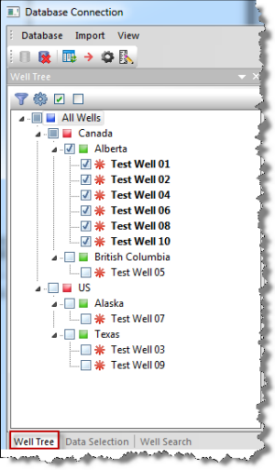
1. Connect to the Database Connection Tool; then click the Well Tree tab at the bottom.
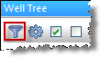
2. Click
the Filter icon ( )
in the Well Tree pane.
)
in the Well Tree pane.
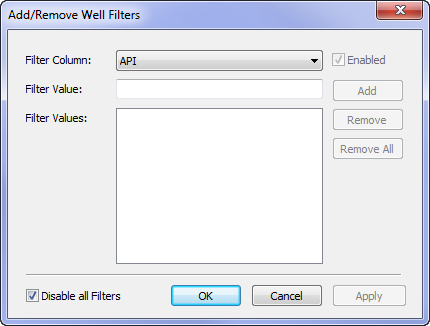
The Add / Remove Well Filters dialog box opens.
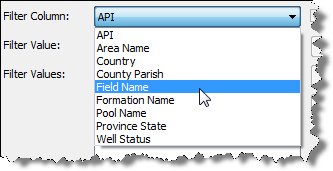
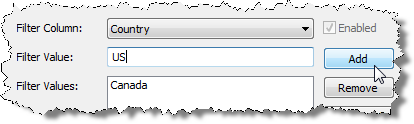
3. Select a value in the Filter Column drop-down list.
4. Enter a filter value; then click Add. (Repeat for all of the search columns and variables you want to use.)
When specifying your filter values, note that the default setting is for the filter to be an exact match. If you would prefer to have increased flexibility with your filtering, see wildcards.
5. Click OK.
Wells that meet your criteria are displayed from the database.
Note: To disable a filter, deselect the Enabled option. To disable all filters, select the Disable all filters option.