Creating a DSN for an Access Database
This procedure is not required, if you open your Access database file through the Database Connection Tool.
To create a DSN for an Access database:
1. Open the Windows Control Panel.
2. Double-click Administrative Tools.
3. Double-click Data Sources.

The ODBC Data Source Administrator dialog box opens.
Note: For IHS Harmony, you must use the 32-bit version of the ODBC Administrator Tool. If you are running a 64-bit version of Windows, the 64-bit version of the ODBC Data Source Administrator is located at C:\Windows\SysWOW64\odbcad32.exe.
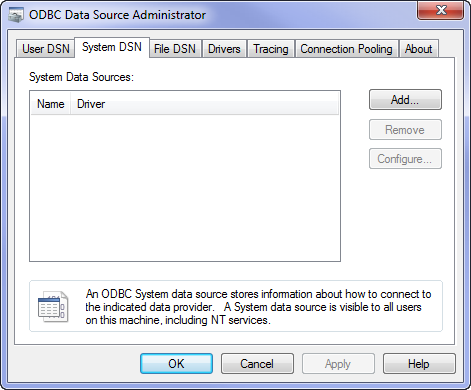
4. Click the User DSN tab (for a computer used by only one user), or the System DSN tab (for a computer used by multiple users); then click Add....
The Create New Data Source dialog box opens.
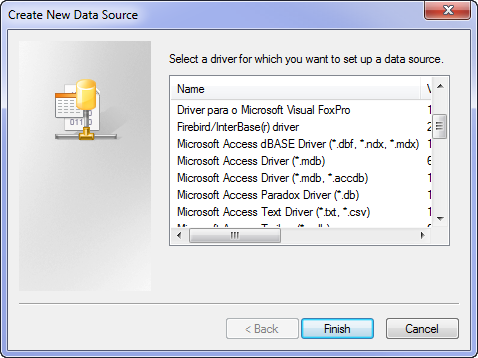
5. Select Microsoft Access Driver (*.mdb); then click Finish.
The ODBC Microsoft Access Setup dialog box opens.

6. Enter a Data Source Name; then click Select....
The Select Database dialog box opens.
Note: We recommend that you give your DSN a name that you can easily recognize, because you need to select the Data Source Name from a list whenever you open your database in the Database Connection tool.
7. Browse to the drive and folder where your Microsoft Access Database is located.

8. Select the database; then click OK.
Your Access database DSN is now created, and is ready for use by the Database Connection Tool.