Importing from a Database
By importing well data from your company's database, you can import well production and reservoir data into a Harmony project. You can also import data from any ODBC-compliant database.
Harmony uses the Database Connection tool to facilitate importing well production and reservoir data from your company's proprietary database into the Harmony database.
Note: The Database Connection tool reads the data from your company's database, but does not write to it. Therefore, there is no danger that Harmony will corrupt your database.
To import well and production data from your database:
1. Click
the Import from Database icon
( ).
).
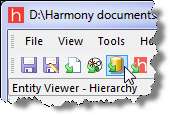
The Database Connection tool opens and displays the Open Database dialog box.

Note: Depending
on your importing
options, this dialog box may not open. If this dialog does not open,
click the Connect icon ( ).
).
2. Click one of the following options:
- Data Source — you can select the ODBC Data Source from the drop-down list.
- File — you can browse to select a Microsoft Access file that contains the wells you want to import.
3. Select a database type, then enter your user name, password, and database schema name, as required to connect to your database. (You may need to contact your IT department.)
- Database Type — select IHS Views or ARIES Database, depending on your Data Source selection.
- Options... — click this button to set your import settings. See Database Import Settings dialog box for additional information.
4. Click Connect.
The Database Connection Tool loads the wells from the database and displays them in the Well Tree pane. (You can view the production data for each well by clicking each well that you're interested in.)
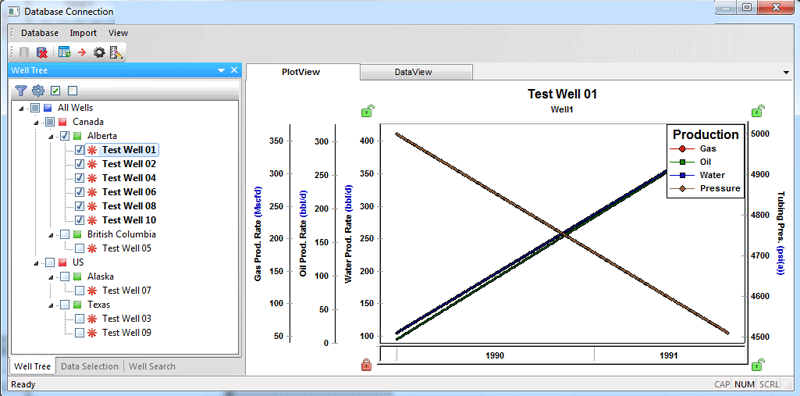
5. Select the well(s) you want to import.
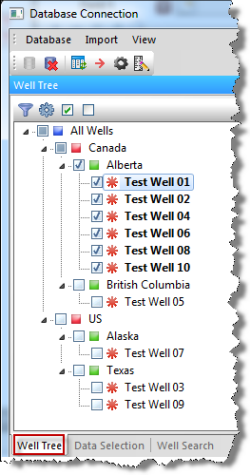
6. Click
the Import icon ( ).
).
The Import Confirmation dialog box opens.
7. Click Import.
The wells are imported into Harmony (e.g., monthly production data that is reported either on the first day of each month, or on the last day of each month). A popup will open displaying the status of your import.
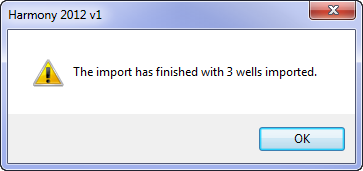
8. Click OK.
Note: To troubleshoot any warnings or errors that occurred while connecting to your database, click the Import menu, then Diagnostics….