 Click to see subtopics / related topics:
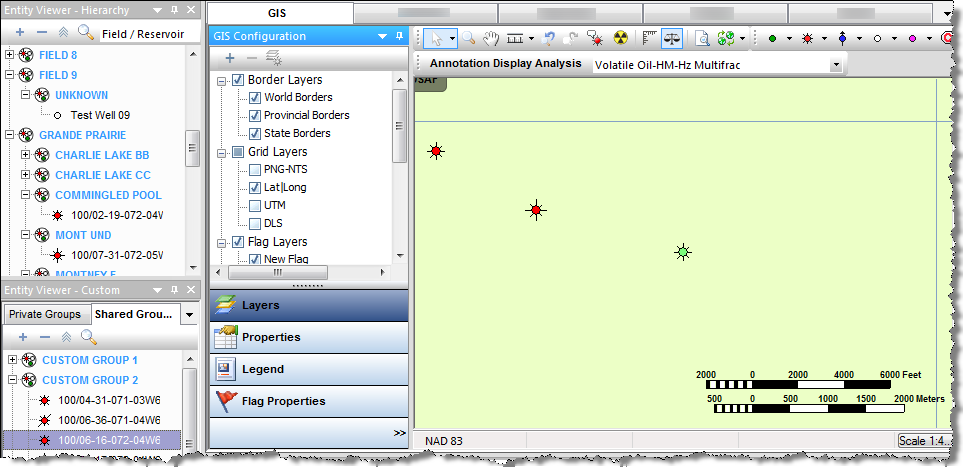
Entities are displayed on the GIS map only if their attributes include geographical coordinates. If you expect to see well on the GIS map and it is not there, highlight it in the Entity Viewer - Hierarchy or Custom, click the Attributes tab, double-click Location in the tree structure, and verify that the latitude / longitude attributes are valid. For more information, see GIS map.
There are four toolbars on the GIS tab:
1. GIS Configuration pane
2. GIS toolbar
3. GIS design mode tools
4. Active analysis
This toolbar handles layer functionality.
This toolbar handles map-related functionality. For a description of common icons, see toolbars.

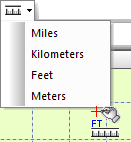 Measure — select your scale from the drop-down list. Click the first location on the map and then drag the mouse to the second location. The distance is displayed between the two points, and updates automatically when the distance changes.
 Go back to Previous Extents — reverts your display to the previous zoom setting.
 Go to Next Extents — updates your display to the next zoom setting.
 Annotation Display Options — opens the Facility Annotation Editor dialog box where you can customize your annotation display. This icon is grayed-out when the annotation layer is not supported because there are too many wells on-screen.
 Reset GIS — zooms out to display all the wells on the map, or if there are no wells, the map zooms out to display the entire world).
 Rulers — displays a ruler along the top and left-side of the map. This can be toggled on or off.
  Scale — displays a map scale in the lower right corner of the map. This can be toggled on or off.
  NAD Conversion — from the drop-down list, select NAD 83 (North American Datum, modified in 1983), NAD 27 (North American Datum, created in 1927), or WGS 84 (World Geodetic System, modified in 1984).
 Use this toolbar to draw wells on the map.

From left-to-right, the icons enable you to add an oil well (green), gas well (red), water well (blue), location (white), other well (pink), and coalbed methane (CBM) well to the GIS map.
| Note: | Icons on this toolbar are only active if you are zoomed-in close enough. |
From this toolbar, you can select an analysis name from the drop-down list. The data from this analysis is used in Results annotations.

The GIS Configuration pane has the following buttons:
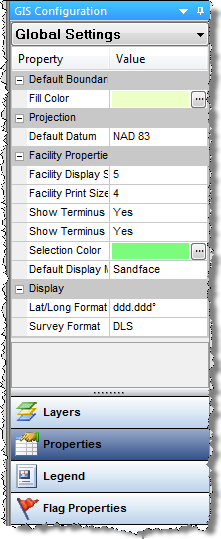
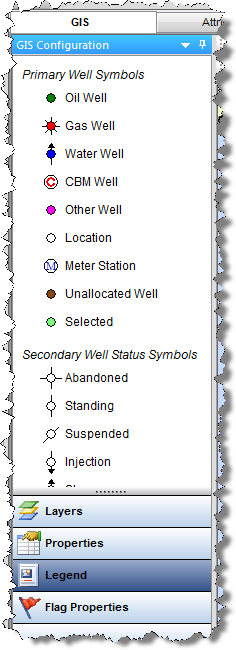
Note: Meter stations are displayed on the GIS map only if they are included in an imported .dp2 or a 298 file.
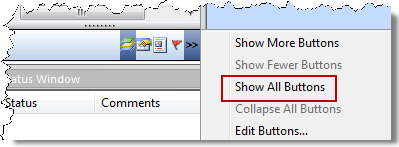
If you do not see these buttons, click the angle brackets (>>) and select Show All Buttons.
Right-clicking within the GIS Configuration pane lists various options, which depend on the type of layer you select (for example, border layers, grid layers, and so on):
IHS Harmony Enterprise™ 2018.1 | Last revised: March 20, 2018
Copyright © 2018 IHS Markit Ltd. All rights reserved.