Analysis manager
The Analysis Manager opens each time you create a new worksheet, or open an existing worksheet. Within the Analysis Manager, you can display and manage the analyses on an open worksheet.
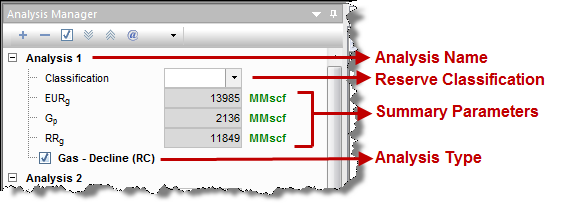
Within the Analysis Manager pane is a tree structure that displays all of the existing analyses. If you want to rename an analysis, right-click it and type a new name. Under each analysis:
- You can set your reserve classification from the Classification drop-down list.
- A summary of analysis results are displayed, showing the estimated ultimate recovery (EUR), historical cumulative production at the forecast start date (Gp or Np), and remaining recoverable (RR) for the fluid in the analysis.
- You can select / deselect the analysis type to show / hide the analysis on the worksheet. After you select an analysis, a list of detailed parameters pertaining to that analysis is displayed in the Analysis Parameters pane below the Analysis Manager pane. Within the Analysis Parameters pane you can view and modify your parameters.
Toolbar
This toolbar has the following icons:
-
 Add Analysis — adds an analysis to the current entity with the type specified. You can add these types of analysis:
- Note that the analysis you are adding to a worksheet needs to be compatible with the selected entity for analysis, fluid type, and the worksheet itself. Harmony does not restrict analyses based on the primary fluid of a well, but there are two restrictions:
- the entity type has to support the analysis (depending on whether the entity is a hierarchy group, custom group, or well).
- the worksheet has to support the analysis (to add a gas decline, the plot has to be cal / op gas rate vs time, normalized time, or cumulative gas).
-
 Remove Analysis — deletes the currently selected analysis.
-
 Select All / Deselect All — selects / deselects all of the analyses in the Analysis Manager.
-
 /
/  Expand All / Collapse All] — expands / collapses all nodes of the tree structure displayed in the pane.
-
 Reference Volume — updates the cumulative production at the reference date for all classified analyses associated with the active reference date.
-
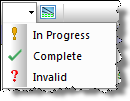 Set Entity Work Status — assigns a symbol to the entity you have selected based on your selection. This work status is displayed in both the Analysis Manager and the Entity Viewer.
For a description of common icons, see toolbars.
Context menu
Right-clicking an analysis type within the Analysis Manager lists these options:
Duplicate into Analysis — moves a copy of the analysis to the destination you select, while retaining the original analysis in the Analysis Manager. To duplicate an analysis:
- Right-click the analysis type and select Duplicate into Analysis, and then select a destination:
- <New Analysis> — lists the copy as a new analysis in the Analysis Manager, at the bottom of the pane.
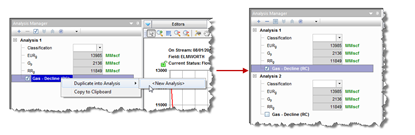
- [Analysis Name] — links a copy of the analysis to a selected analysis, while maintaining the original analysis.
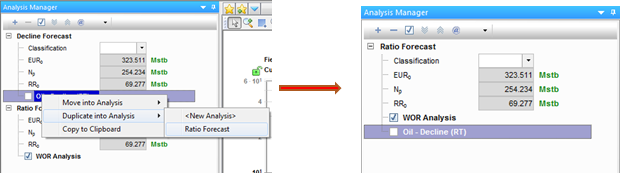
- The linked analyses can only associate a single forecast type (for example, decline or ratio) per fluid type. For example, you cannot link a multi-segment gas decline with any other type of gas decline. Neither can you link two WOR ratio analyses. However, you may:
- - duplicate an oil decline into a gas decline analysis (or vice versa). The results of both analyses are displayed under the parent analysis name in the Analysis Manager.
- - duplicate an oil decline analysis into a WOR analysis. The decline results always overwrite the ratio analysis results. This is a permanent action, and removing links does not restore the results of the WOR analysis.
-
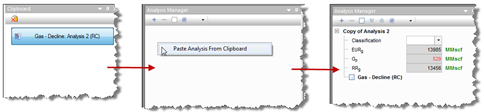
Copy to Clipboard — you can copy a decline or multi-segment decline analysis into the clipboard and paste it into the Analysis Manager of another entity. To copy an analysis to other entities:
- Right-click the analysis type and select Copy to Clipboard.
- The Clipboard pane opens.
- Drag the copied analysis from the Clipboard to the Analysis Manager of another entity.
Or, right-click the empty space in the Analysis Manager and select Paste Analysis from Clipboard.
-
Move into Analysis — links the analysis to a destination analysis that you select. To move an analysis:
- Right-click the analysis type, select Move into Analysis, and then select the name of the analysis you want to link it to.
IHS Harmony™ 2016b Multi-User | Last revised: October 19, 2016
Copyright © 2016 IHS Inc.
 Click to see subtopics: