 Click to see subtopics & related topics:
The Attributes tab displays well information in a table. Harmony displays a default selection of attributes (named Auto Template) when one or more wells are selected in the Entity Viewer.
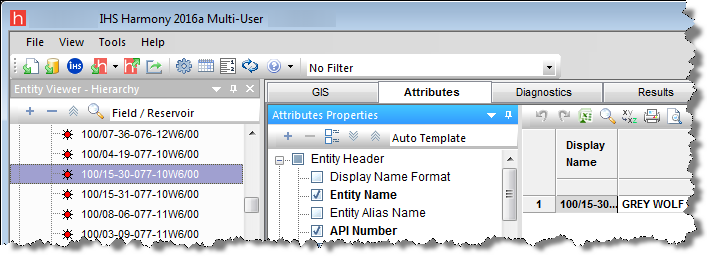
You can export this table to a .csv file. Some of the information displayed (for example, Reservoir or Operator name) is not required to perform a well analysis, but can be helpful for filtering data.
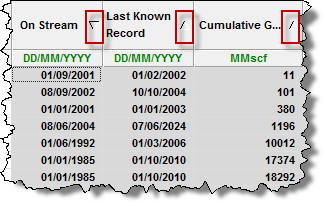
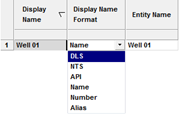
Well attribute data can be imported from a file / database, entered manually, or copied-and-pasted from another table cell. The table cell's color can be used to identify the method by which data can be entered into the cell:
The Attributes tab has two toolbars: primary and secondary. The unique items are described below; for a description of common icons, see toolbars.
The primary toolbar is located below the Attributes Properties pane.
Clicking the  icon on this toolbar lists two options.
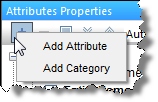
1. Add Attribute — opens the Create Custom Attribute dialog box. You can create two different types of custom attributes: Input (using values you enter), and Calculated (using equations you enter).
2. Add Category — opens the Create Custom Category dialog box where you can create custom categories to group your attributes. The selection tree updates after you add your category.
Other notes on this toolbar include the following:
 icon after selecting the custom attribute or category you want to delete. You are prompted to confirm your decision when deleting a custom attribute, but a custom category is immediately deleted.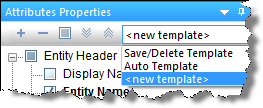
Note: Templates are user- and computer-specific; they are not database-specific.
The secondary toolbar is located above the attributes table / grid and has the following important items:
 Undo / Redo — undo your previous action, or redo your action.
 Find / Replace — type the text you want to search for, and then type the text you want to use instead.
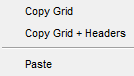
Right-clicking the top left of your table lists these options:
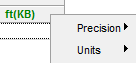
Right-clicking the numeric columns’ headers (the columns displaying units in green text) lists these options:
After selecting your rows using the row headers, right-clicking the row numbers to the left and selecting Select Subset removes the other rows in the table, and this selection persists across Harmony (for example, the Entity Viewer, GIS map, and so on).
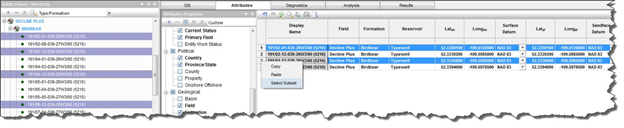
Right-clicking a white table cell lists these options: cut, copy, paste, and clear.
You can create custom attributes in Harmony.
(Add Custom Attribute / Category) icon on the Attributes Properties toolbar and select Add Attribute, the Create Custom Attribute dialog box opens. (Remove Custom Attribute / Category) icon in the Attributes Properties toolbar.If you selected Number for your Unit Type in the Create Custom Attribute dialog box, you created a custom-calculated numeric attribute.
Clicking the Edit Formula button in this dialog box opens the Equation Editor, where you can use a combination of existing production datasets, custom-input datasets, custom-calculated datasets, well attributes, custom-input attributes, custom-calculated attributes, constants, and mathematical operators to build your equation. For more information, see the Equation Editor dialog box.
You can add a custom-calculated text attribute using a combination of existing text attributes, custom-text attributes, custom-calculated text attributes, and user-defined text.
When you click the (Add Custom Attribute / Category) icon and select Add Attribute, the Create Custom Attribute dialog box opens.
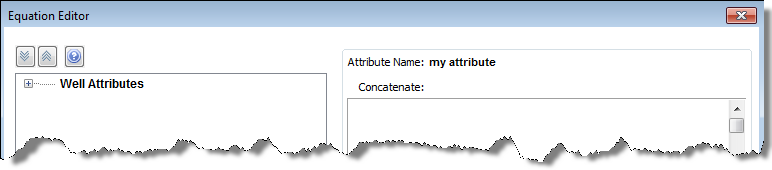
The top part of the Equation Editor has the following components:
IHS Harmony™ 2016b Multi-User | Last revised: October 19, 2016
Copyright © 2016 IHS Inc.