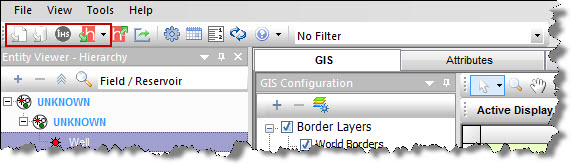
Role-based security (RBS) provides users with the ability to limit access to certain functions in Harmony, based on permissions that are associated with the role assigned to them. Depending on your role in Harmony, you are able to do various things:
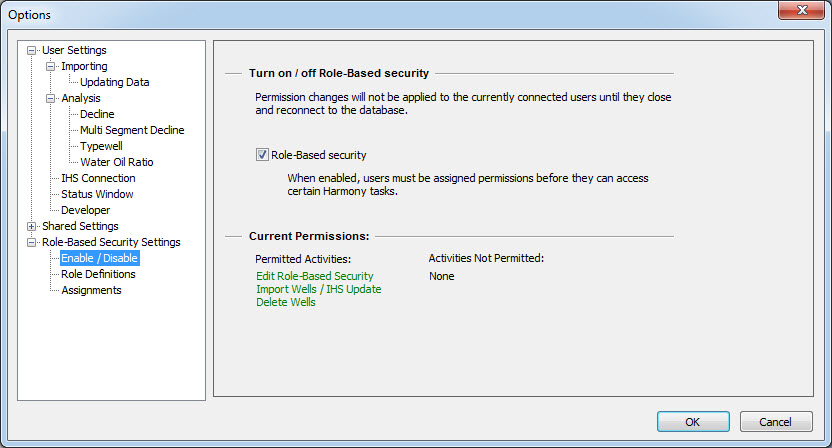
Role-based security is set in the Options dialog box, under the Role-based Security Settings node. To determine your permissions for your current session, click the Enable / Disable node. Any activities that are not allowed are displayed in red text under the Activities Not Permitted heading.
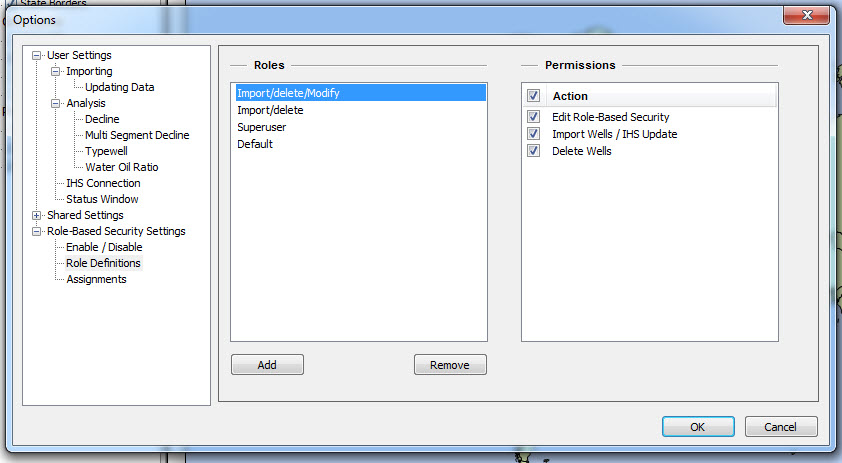
After clicking the Role Definitions node, you can add or remove roles. After you have added a role, you can rename it by double-clicking the role name in the Roles pane. (If you do not have permission to modify roles, the Permissions pane is grayed-out.)
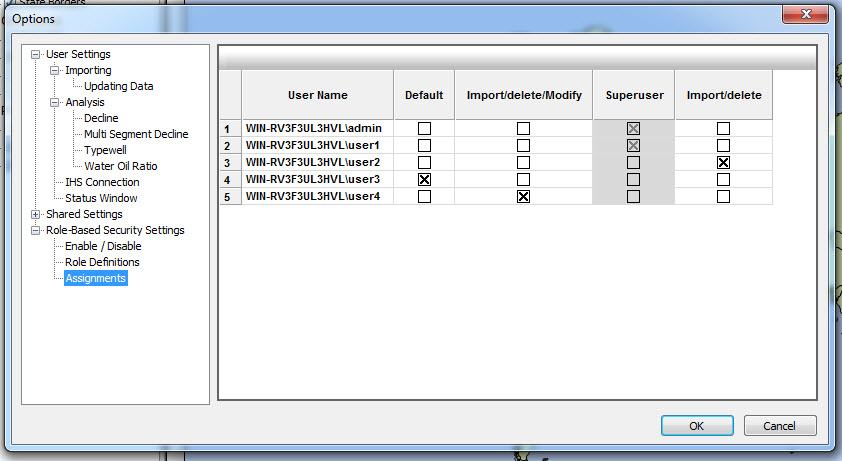
After clicking the Assignments node, you can assign users to various roles by clicking the checkboxes for the access you want to grant. Note that the superuser role cannot be assigned from the dialog box, and therefore it is grayed-out.
The permission you have for a given session remains the same, regardless of whether another user has made modifications to your permissions. To see any permission changes another user has made, requires Harmony to be closed and re-opened. These changes persist after you click OK. Changes made by a user to their own role or role assignments (when they have the "modify role" permission) take effect immediately after they click OK.
Note: If another user is updating user roles and assignments at the same time, you may need to close the project, reconnect, and try again. If this is the case, an error message is displayed in the Status Window.
IHS Harmony™ 2016b Multi-User | Last revised: October 19, 2016
Copyright © 2016 IHS Inc.