 Click to see subtopics:
You may want to perform some work outside of the database (for example, you may want to test some analyses without modifying the existing work in the database). This work can remain in a separate project, or you can import this data back into the source project later.
Note: Extracting and importing with Harmony databases is currently only supported for wells. Group-level analyses (and all custom groups) are not included.
Extracting wells from a Harmony database is a process that creates a *.hldb data file from the extracted content using Microsoft SQL LocalDB. You can connect to the *.hldb data file via a LocalDB on your computer (or another user's computer), or import it into a Harmony database. You can transfer wells from one database to another, work on a subset of wells offline, or send your work to technical support.
To extract wells, you must install the Microsoft SQL LocalDB, which is included in the Harmony installation for your convenience.
1. Select the wells your want to extract in the Entity Viewer (Hierarchy or Custom pane).
2. Click the Extract Wells icon ( ) on the main toolbar.
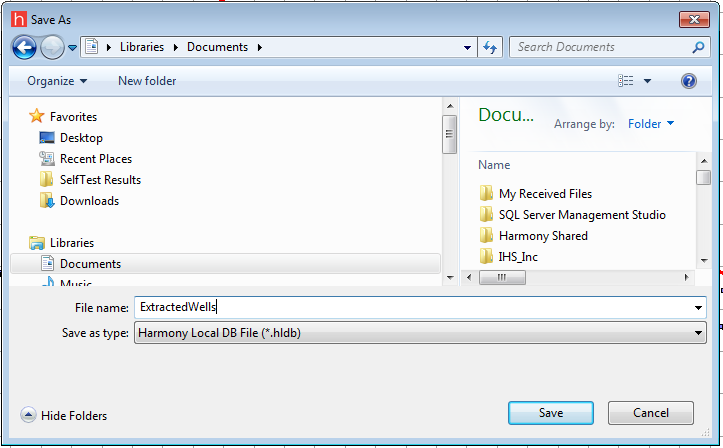
3. Specify a filename and save your *.hldb file.
To connect to a .hldb file that was extracted from Harmony (by you or another user):
1. Click Connect to local DB on the Harmony splash page (opens when you launch Harmony).
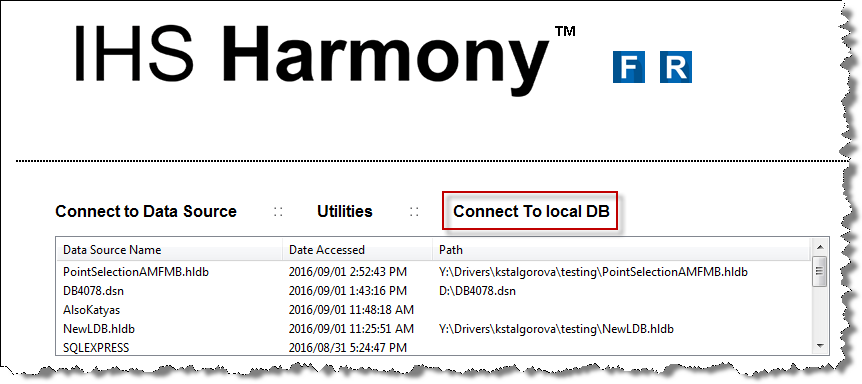
2. Browse to the location of the .hldb file and click Open.
Your extracted wells are now treated as a new Harmony database, and any changes you make in Harmony are saved in the *.hldb file.
Note: Local database files extracted from Harmony Multi-User version 2016a have an .mdf extension. They can be imported into Harmony Multi-User with the same procedure. Note that you may need to upgrade local databases extracted from earlier versions of Harmony before opening them in newer versions of Harmony.
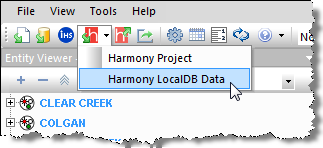
Open Harmony, click the Import Harmony Data icon on the main toolbar, and select Harmony LocalDB Data.
If you are importing to a different database, you can merge your changes to existing wells, or import your changes as new wells (see importing well data from a file).
Note: You may need to upgrade local databases extracted from earlier versions of Harmony before importing them into newer versions of Harmony.
IHS Harmony™ 2016b Multi-User | Last revised: October 19, 2016
Copyright © 2016 IHS Inc.