 To change well spacing
You can space wells either a uniform or a relative distance apart and specify whether the log header includes simply the UWI and well type, a traditional log header with more information and a large UWI for presentation, or a composite log header that includes the traditional log header information as well as top and bottom hole coordinates. Two separate procedures appear below.
To quickly toggle well log spacing without specifying defaults, from the Cross Sec menu, select Layout and either Space evenly or Space proportionally.
To change well spacing
1. From the Cross Sec menu, select Properties ( ).
).
The Cross Section/Single Log View Common
Properties: Datum/Space
dialog box appears.

2. In the spacing drop-down box, select Proportionally or Evenly.
 If you selected Proportionally,
type values for the min and
max distance for proportional spacing
in inches.
If you selected Proportionally,
type values for the min and
max distance for proportional spacing
in inches.
If you selected Evenly,
type a value in the distance for evenly
spacing box in inches.
3. Click OK.

To change well header style
1. From the Cross Sec menu, select Properties ().
The Cross Section/Single Log View Common
Properties: Datum/Space
dialog box appears.
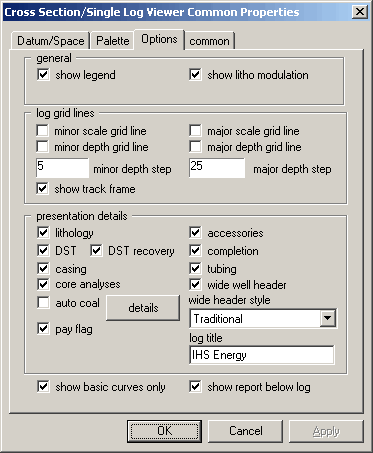
2. Select the Options tab and select wide well header.
3. From the wide header style drop-down list, select either Traditional or Composite, and then click OK.