 To define target zones
Target zones are stratigraphic intervals within your zone of interest for which you want to estimate reservoir properties. AccuX enables you to work with any target zones that appear within a zone of interest. For example, if you select from BELLY RIVER to JFOU as your zone of interest, you can select from more target zones than if your target zone is only from VKSND to JFOU.
You define the area with which you want to work by selecting the top and bottom formation then set criteria that apply to this zone including matrix density, effective porosity, and more. AccuX creates a number of map layers you can display such as net sand, net pay, pore volume and more. You can also specify coal cutoff criteria and select Apply Coal Cutoffs to Target to identify possible coal beds based on log response.
Click to view the Target Reservoir Properties AccuX extracts from well log and well core data.
To define target zones
1. From the Targets menu, select either of the following:
 Add Target Formation to create a new target zone
OR
Target Formation
List to display the Target
Formation List dialog box and select a query you previously
added to modify and then click Properties.
The Target Zone Properties
dialog box appears.

2. Type a unique target name in the target zone name box.
If working
with AccuX DB mode, select whether to work with AccuMap or Generic tops.
3. Click the buttons below the Formations Set drop-down list and select the tops that define your zone of interest.
4. Specify cutoffs for effective porosity (%), hydrocarbon saturation (fraction), shale volume (%), and so on, and then click OK.
 Note: Cutoffs for the target zone override global
cutoffs defined in the Global
Petrophysical Settings
dialog box.
Note: Cutoffs for the target zone override global
cutoffs defined in the Global
Petrophysical Settings
dialog box.
5. In the left toolbar,
click AccuX Vision ( ).
).
The Setup AccuX Vision
dialog box appears.
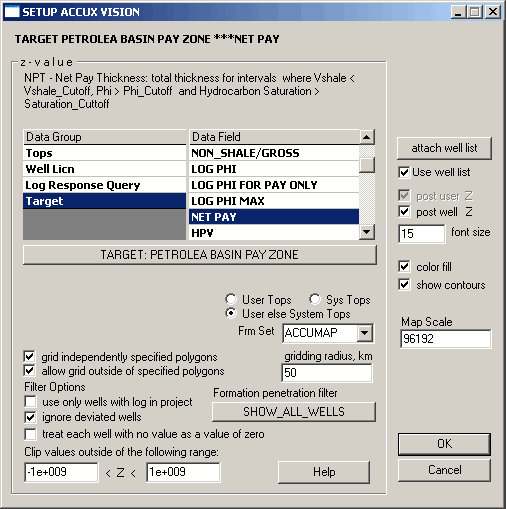
6. Select the Target Data Group and ensure the target zone you created above is named on the Target button, or click the button to display the Target Lookup dialog box and select the desired target from others you've created.
7. In the Data Field, select the map layer on which to display your target, and then click OK.
AccuX examines the petrophysical properties between the top and base of the target zone for each well and displays a reasonable, first approach to the map.

|
|