 To display only wells from well
lists
To display only wells from well
listsYou can attach a well list created using AccuMap and other applications to either ignore the influence from wells that aren't included in that well list or to download digits from the hub for only the wells in that list. This can be especially helpful when trying to determine trends for large areas.
To further filter the wells in the well list for which to download digits from the hub, draw a polygon that encircles only the desired wells and then download digits for only wells within that polygon. For details, see Related Topics below.
Use AccuMap to update the well list before trying to attach it to your AccuX map.
To display only wells from well
lists
1. In the left toolbar,
click AccuX Vision ( ).
).
The Setup AccuX Vision
dialog box appears.
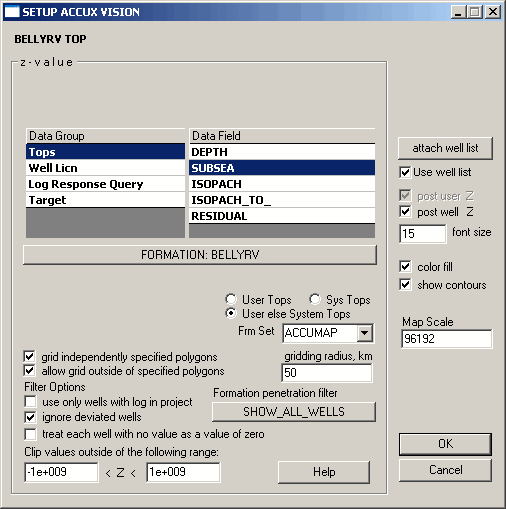
2. Click Attach Well List, and then browse to and select the desired well list.
AccuX imports the UWIs of wells in the list but doesn't maintain a connection to the original well list, so changes to that well list aren't reflected in AccuX.
 Note:
If you attach a different well list, wells in the previously attached
well list no longer appear.
Note:
If you attach a different well list, wells in the previously attached
well list no longer appear.
3. Using the Setup AccuX Vision dialog box, select the Data Group and Data Field to display, select Use Well List, and then click OK.
 Tip:
Each time you select a different Data Group, you must also select Use Well List for the wells to appear.
Tip:
Each time you select a different Data Group, you must also select Use Well List for the wells to appear.
Only symbols for the wells in the well list appear on the map.

