 To query log responses
You can query specific log types with responses that fall within a specific range for either all the logs in a project or screen extents, or only those within a polygon you draw. You define the log type, zone of interest, and minimum and maximum values within that zone of interest to display on your map. The formation top(s) that define your zone of interest must exist in all queried wells for that well to be queried. If the digital log data for a queried well does not exist, you can specify that AccuX retrieve this data from the IHS Energy Information Hub.
To query log responses
1. Draw a polygon around wells in your area of interest. You can query the entire map, but the number of wells and your connection speed may slow your query.
2. From the Query menu, select either Add Log Response Query if no other predefined queries already exist, or select Log Response Query List to display the Log Response Queries dialog box and select an existing query to modify then click Properties.
The Digital Log Response Query
dialog box appears.

3. Type a unique query name of up to 20 characters and select a formation top common to all wells in your query. Consider selecting only one highly-ordered top for both the top and base formations to reduce the variables of your query results.
4. Select a log type and response range minimum and maximum values and then click OK. Only select one log type for your initial query and add additional log types in subsequent queries.
5. If working in Project mode, do either of the following:
 To query only logs within a polygon,
from the Polygon menu, select
Load Digits from Hub for Selected
Polygon. After the digits
finish loading, right-click the polygon that surrounds the
wells to query and select Do
Log Response Query for Polygon.
To query only logs within a polygon,
from the Polygon menu, select
Load Digits from Hub for Selected
Polygon. After the digits
finish loading, right-click the polygon that surrounds the
wells to query and select Do
Log Response Query for Polygon.
To
query all wells in a project, from
the Query menu, select
Run Log Response Query for Entire Project.
The Log Response Query
dialog box appears.
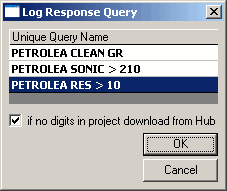
In the Unique Query Name
list, select the query to run, and then click OK.
6. When the query completes,
in the Left toolbar, click
AccuX Vision ( ).
).
The Setup AccuX Vision
dialog box appears.

7. In the Data Group, select Log Response Query. By default, the lookup button below the Data Group list displays the first log response query that appears in your list of created queries. To select a different query, click the lookup button to display the Log Response Query dialog box and select the desired query.
8. In the Data Field, select the desired map layer to display and choose desired filter options such as whether to display logs with Z-Values within a certain range and then click OK.
A map layer depicting your results appears.
To export your results to Microsoft Excel,
from the Query menu, select
View Query Results as MS Excel.

|
|