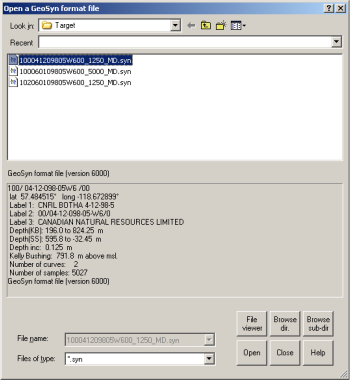
Open a synthetic created and previously saved in GeoSyn, which includes all of the formatting, display options, and customized settings. Before opening a file, you can display and sort them based on UWI using Directory Browser. For details, see Related Topics below.
Each time you open a synthetic, GeoSyn pulls the formation tops defined in the well from your local AccuMap system tops and AccuMap user tops databases.
To import basic log data from a log saved in LAS format, a GeoSyn synthetic file, AccuMap, or from the IHS Information Hub, see Related Topics below.
To open a GeoSyn synthetic
1. From the File menu, select Open.
OR
With GeoSyn open and a blank GeoSyn canvas displayed, simply drag the .syn file from a Windows location onto the canvas.
The Open a GeoSyn format file
dialog box appears.
2. Either browse to the desired GeoSyn file using the Look in drop-down list and directory display pane or click Browse dir. or Browse sub-dir. to display the Directory Browser displaying GeoSyn files in the current directory or in the current directory and its subdirectories too.
3. View general statistics about the selected GeoSyn file in the GeoSyn format file pane then click Open.
The GeoSyn file with formatting and settings you previously applied appears in the main synthetic display.
| Using Directory Browser | Importing LAS or GeoSyn Files |
| Launching GeoSyn from AccuMap | Downloading Logs from the IHS Information Hub |