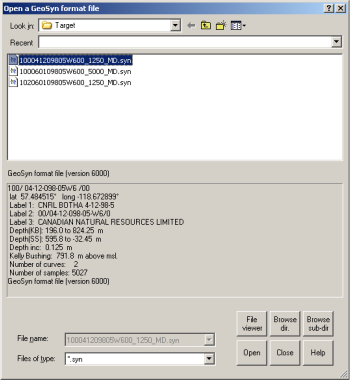
Depending on whether you're opening a GeoSyn synthetic or creating one by importing an LAS or GeoSyn file, Directory Browser displays the relevant files in either the current directory or the current directory and its subdirectories too. All files are displayed in one central view sorted by UWI and if importing logs, both LAS and GeoSyn files are shown together.
Filter whether files are displayed by typing geographic coordinates, sort by clicking column headers for various UWI columns, and view basic details about each file before opening or importing it.
The first time it's run, Directory Browser creates a catalog file with a .cat extension in whichever directory it's launched. If you run Directory Browser for subdirectories as well, a .cat file is created in each subdirectory too. Depending on the volume of LAS and GeoSyn files in the selected directories, the catalog file creation process may initially take time as GeoSyn opens each file, searches for a valid UWI, and then writes a catalog entry with the information derived from each file. After the catalog file(s) is created though, GeoSyn only examines new files added to the directory.
Increase the speed at which Directory Browser processes files by ensuring only LAS files appear in the catalogued directories.
Corrupt GeoSyn files in the target directory may cause Directory Browser to crash.
To use Directory Browser
1. Depending on whether you're opening an existing GeoSyn synthetic or creating a new one by importing either an LAS or GeoSyn file, do either of the following:
To open an existing synthetic, from the File menu, select Open.
To create a new synthetic from a log file, from the File menu, select Import > Log Data.
Depending on your selection above, either the Open a GeoSyn format file
or the Import log data
dialog box appears.
2. Select the root directory or drive from the Look in drop-down list then double-click folders in the file and folder display pane to browse to the directory that contains either the desired files or the subdirectories with those files.
3. Click either Browse dir. to catalog only the files in the current directory, or click Browse sub-dir to catalog all LAS and GeoSyn files in both the current directory and all subdirectories within the current directory.
The Cataloging
directories dialog box appears as the catalog file(s) is created.
If cataloging subdirectories, a GeoSynvs2.cat
file is written to every subdirectory.
The Directory Browser
dialog box appears listing UWIs in the appropriate survey system tab and
separated into columns representing each coordinate group of the survey
system. Log files with missing or invalid UWIs are only listed in the
Labels tab.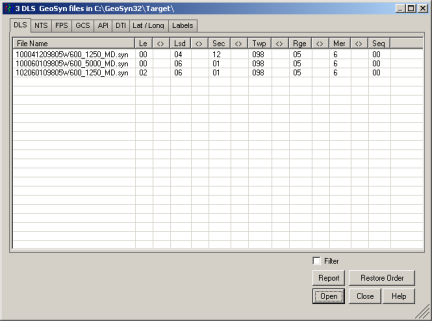
4. Select the desired
survey system tab and then click a column header to sort rows based on
the values in that column or change the column order by clicking transpose
( ) between two columns to swap.
5. To remove UWIs that appear outside of a certain geographic boundary, select Filter then click Edit to display the Edit a UWI dialog box and specify the coordinates for the pane within which to display UWIs.
6. Right-click a row to view a popup window with basic log details.
7. Select the row to open or import into GeoSyn then click Open.
To write the current Directory Browser view to an ASCII format file, click Report to display the Browser report dialog box then click Save Report.
| Opening GeoSyn Synthetics | Importing LAS or GeoSyn Files |