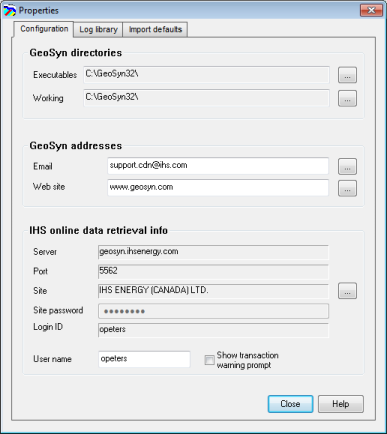
GeoSyn enables you to change basic configuration details that apply to all GeoSyn sessions, including the directories where it looks for configuration, license, and template files. Changes you make affect both the current and future GeoSyn sessions.
The Properties dialog box includes a separate tab to control how imported logs are interpreted and displayed. For details, see Related Topics below.
Several interface items can be toggled from the view menu: Tool Tips, Toolbar, and Status Bar.
Configure whether object highlights and tooltips display using either the View menu, or by right-clicking anywhere in the main display pane.
To configure GeoSyn defaults
1. From the Edit menu, select Configuration properties.
The Properties: Configuration
dialog box appears.
2. Click the browse
button ( ) beside the Working
box to specify a different location where GeoSyn looks for and saves model
layout templates, color palettes, and more.
) beside the Working
box to specify a different location where GeoSyn looks for and saves model
layout templates, color palettes, and more.
If your subscription to the IHS Information Hub is charged by the transaction, select the Show transaction warning prompt check box to be notified before digits are downloaded and charges incurred.
3. Click Close to apply the changes or click a different tab.
Configuration changes are automatically applied to this and future GeoSyn sessions.
| Changing Import Defaults | Contacting Customer Care |