 ).
).Import the control path settings and display parameters for everything in a new synthetic except logs from a default file. Log default settings are controlled by a centralized log database with one exception: when you update a default file with settings from the current model, settings for the logs in the current model are also saved to the import defaults file and override, but don't overwrite settings in the log defaults database. For details on changing log display, see Related Topics below.
Create multiple import default files with a .def extension in the GeoSyn Working directory and then apply these defaults to a given model when you launch it. For example, you could create unique default files for several different projects with differing criteria, or several default files for the same project that you switch between to view different scenarios.
Defaults can either be applied to the current model, or the parameters set in the current model can be applied to a default file that you then save for future use.
Separate procedures for changing import defaults individually and for updating them from a previous import default file appear below.
To change import defaults
1. From the Edit menu, select Configuration properties ().
The Properties: Import Defaults
dialog box appears.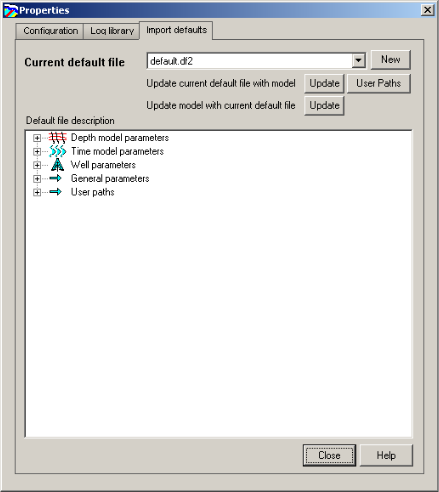
2. Select an import defaults file to modify in the Current default file drop-down list or click New to display the New default file name dialog box and type a new file name. The new import defaults file inherits the settings of the current model.
To apply changes that you've made in the current model to the default file that other GeoSyn models use, select the file in the Current default file box, then click Update beside the Update current default file with model label.
To
apply parameters from a default file to the current model, select the default file in the Current
default file box, then click Update
beside the Update model with current default file label.
The Update Options dialog box appears where you select the specific parameters to change, and then click OK.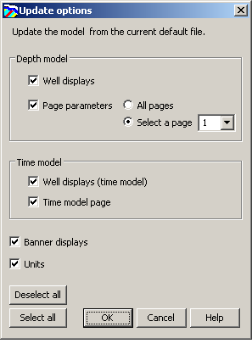
The nodes in the import defaults file tree display settings from the selected file. Click to expand nodes and view their settings.
3. Aside from updating
or creating a default file with the current model parameters, the only
other import default you can change directly in the Import
Defaults tab are the source and target paths where to import
and save log files. Change other settings using the
Display Parameters
( ) dialog box and then return to the Import
Defaults dialog box.
) dialog box and then return to the Import
Defaults dialog box.
4. Click Close to return to the main display with your changes applied.
The current default file is automatically selected next time you launch GeoSyn and applies to all future models derived from imported logs.
| Configuring GeoSyn Defaults | Changing Log Definitions |