The Well Properties: Log properties
dialog box appears.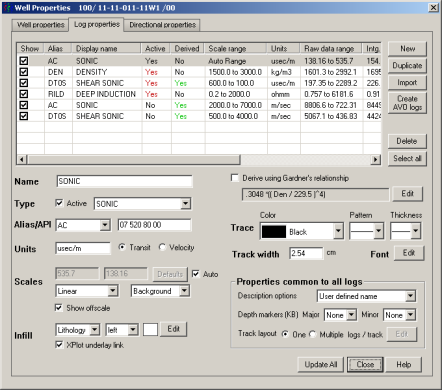
Logs can occupy either separate tracks in the main display or can share tracks to save work space. GeoSyn enables you to specify the logs to display in up to ten tracks and displays an unlimited number of logs in any track. The same log can be repeated in multiple tracks.
With a left and right log defined in the same track, select cross over options and adjust the horizontal placement of the logs to infill areas where the two logs overlap.
Save composite log layouts with different configurations as templates with a .tpl extension in the GeoSyn Working directory.
The Well Properties: Log properties
dialog box appears.
The Multi-Log per Track Template
dialog box appears.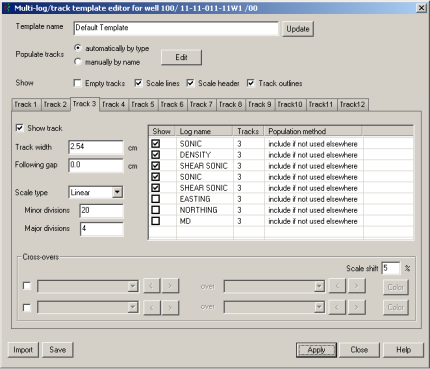
The Multi-log per track layout dialog box appears.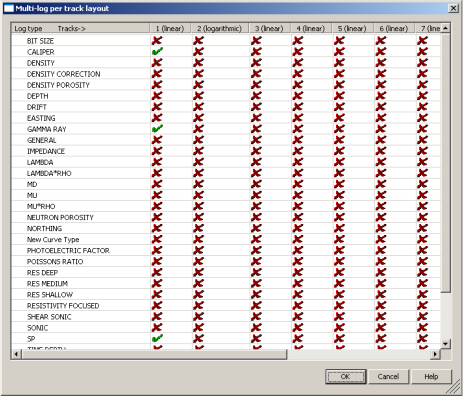
Note: To ensure a log doesn't get dropped, click the All unselected linear logs and the All unselected logarithmic logs options.
The log types selected above are displayed in the various track tabs of the main Multi-log per Track Edit dialog box.
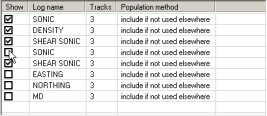
The Tracks column above displays the tracks in which a log appears. In the example above, the density log can be displayed in track 1. It also appears in track 3. The column to the right of the Log name column specifies whether the log appears in a track by default or was deliberately designated to appear in that track.
To fill areas where curve readings for two or four curves intersect within the same track, select the check box to the left of the drop-down lists in the Cross overs section and then select either logs that appears in your model or select fixed value depending on whether you want to infill where curves intersect, or where a curve exceeds a given value. Manually shift a curve by clicking  to the right of the curve drop-down list to enhance the cross over, or type a percentage by which to shift the log scales.