Open topic with navigation
Changing Log Display Properties
Change the display properties of logs in the current
model including label information, which logs are the active sonic and
density, and other details. The term Active denotes the log upon which
the model is based. If you have several sonic logs with different geological
scenarios in one model, for example, you can switch which of the sonic
logs is the active one to see what affect it has on the model.
Create new logs or duplicate logs and modify existing
logs. These changes affect only the current model, not log defaults for
new models. For details on changing log defaults and import defaults,
see Related Topics below.
To change log display properties:
- In the depth page,
right-click the log to modify and select Log
properties from the shortcut menu.
The
dialog box appears.
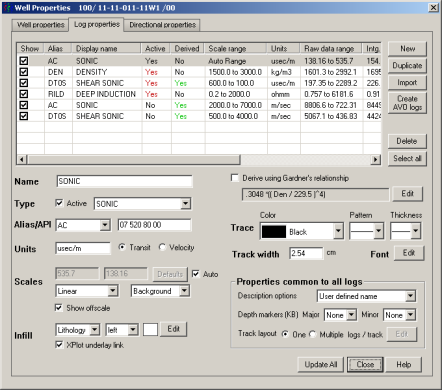
- In the display
pane, select the log(s) to modify using the controls below. SHIFT+CLICK
or CTRL+CLICK for multiple selection.
You can duplicate and modify selected logs, and
also clear logs in the Show column
to save them with the model but hide them from the main display.
- In the Properties
common to all logs pane, specify label and scale information. Although
the One log/track option appears, you can't select it.
- In the Log
properties pane, specify log associations such as the type of log,
whether it's the active sonic or density, and whether it measures transit
time or velocity, and then click Close.
Related topics
Changing log definitions
Changing import defaults
Changing Color Palettes
Combining logs in tracks
Open topic with navigation