Open topic with navigation
Creating log composites
Take a range of data from a donor well and either insert
it into or replace part of a host well.
Log data from the specified depth range of the donor
well is copied to the corresponding log type in the host well. Logs in
the donor well without corresponding logs in the host well are ignored
unless you manually associate them with logs in the host well.
To create log composites:
- Open the log editor:
- Edit > Log editing
- Double click on a log in the model.
- Right-click on a log and select Log editing.
- In the toolbar
beside the Log Editor,
click the Composite tool (
 ).
).
The
dialog box opens.
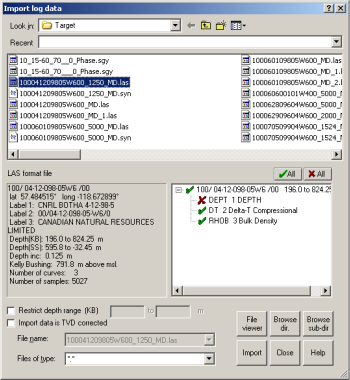
- Select the root
directory or drive from the Look in
drop-down list then double-click folders in the display pane to browse
to the directory that contains either the desired files or the subdirectory
with those files. To filter the type of files displayed, from the File filter drop-down list, select a
file format extension.
- Either click Browse dir. or Browse
sub-dir to launch Directory
Browser displaying LAS and GeoSyn files sorted by UWI, or simply
select the desired file in the display pane. For details on using Directory Browser,
see Related Topics below. For
LAS files, you can inspect and modify the raw data in an ASCII text editor
before importing it by clicking File
Viewer.When you select the file, details appear in the
format file pane.
- In the well tree,
select whether to import specific logs. A check mark (
 )
appears beside logs that will import, a cross (
)
appears beside logs that will import, a cross ( ) beside those
that won't. For wells with numerous logs, toggle the group by clicking
All depending on whether to import or ignore the majority of
logs then toggle the individual logs to import or ignore and click Import.
) beside those
that won't. For wells with numerous logs, toggle the group by clicking
All depending on whether to import or ignore the majority of
logs then toggle the individual logs to import or ignore and click Import.
The
dialog box opens displaying which logs from the donor well will be inserted
into logs of the host well.
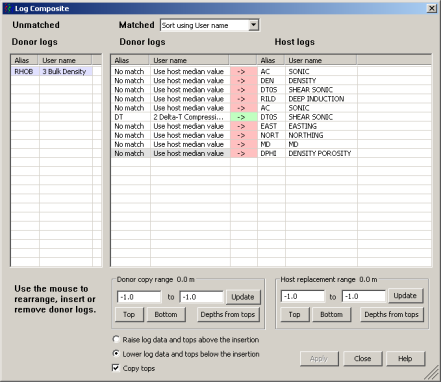
- Logs that match appear in the pane to the right. Logs that don't completely align and for which some constant values will need to be applied are colored red in the cell between the donor and recipient log.
- Drag a log from the Unmatched pane into the Matched pane in the left-most cell of the row that lists the desired recipient log, or drag it from the Matched pane to the Unmatched pane if you don't want it to be a donor log.
- Drag the alias in the left-most column of the Matched pane to change the default recipient log.
- Do one of the
following:
Type precise values in the Copy
range and Replacement range boxes and then click Update.
- Click top
and bottom to accept the absolute
depth from the log.
- Click Depths
from tops to display the Depth
Range from Tops dialog box and then select the formation tops that
signify your zone of interest from the drop-down lists and click OK.
- Click Apply and then click Close.
Related Topics
Clip or filter the log
Inserting log sections
Using Directory Browser
Merging logs
Open topic with navigation