Open topic with navigation
Stretching and Squeezing Logs
Stretch and squeeze a selected log portion in either
time or depth using the Log Editor, which displays the log view in depth,
or stretch it in time using the Correlation Window, which enables you
to hover the log over seismic.
Stretch and squeeze functionality is also available when
tying seismic to models or by specifying values when importing check shot
surveys. For details, see Related Topics
below.
To stretch and squeeze logs:
- Open the log editor:
- Edit > Log editing
- Double click on a log in the model.
- Right-click on a log and select Log editing.
- Select the tab
for the log to stretch or squeeze and in the Log Editor toolbar, click
the Stretch Squeeze tool (
 ).
).
The
dialog box appears.
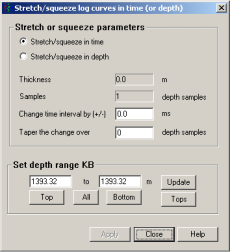
- Select whether
to stretch or squeeze the log in time or depth.
- Do one of the
following:
- Drag the cursor (
 ) on the Log Editor log display pane to select a range to
stretch or squeeze. The cursor position appears in the banner of the Log Editor.
) on the Log Editor log display pane to select a range to
stretch or squeeze. The cursor position appears in the banner of the Log Editor.
- Type values in the Set depth
range KB pane for the start and stop depth and click Update.
- Click either top
or bottom to accept the absolute
depth from the log or click All
to accept both.
- Click Depths
from tops to display the Depth
Range from Tops dialog box and then select the formation tops that
signify your zone of interest from the drop-down lists and click OK.
- Do one of the
following:
- If you selected depth above,
type the desired thickness of the zone defined above after stretching
or squeezing. If the value is less than the difference between the start
and stop depth, the log will be squeezed. If more, the log will be stretched.
- If you selected time above, type
a value by which to adjust the transit times for the zone defined above
and the number of samples over which to taper the change.
- Click Apply.
Related Topics
Clipping or filtering logs
Cutting logs
Open topic with navigation