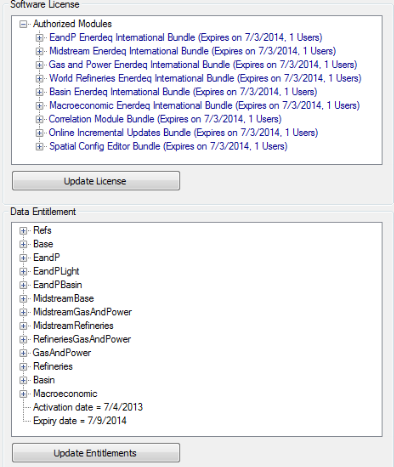
In the Software License pane, the modules, and the number of corresponding user seats appear. In the Data Entitlement pane, the type of data, geographic area to which you have access, and the entitlement duration appear.
The license file enables a certain number of users to launch and run EDIN for a specific period of time. The entitlements file specifies which EDIN data you're authorized to access. You can update the current license or entitlements files by selecting the compressed zip file you received from IHS. Admin Console reads directly from the zip file, you don't need to unzip it.
The entitlements file is typically saved to the Admin Console root folder.
To update the license or entitlements file
1. In the Admin Console navigation tree, click License and Entitlements.
The License and Entitlements dialog box appears.
In the Software License pane, the modules, and the number of corresponding user seats appear. In the Data Entitlement pane, the type of data, geographic area to which you have access, and the entitlement duration appear.
2. Click either Update License
OR
Update Entitlements.
The Product Activation dialog box appears.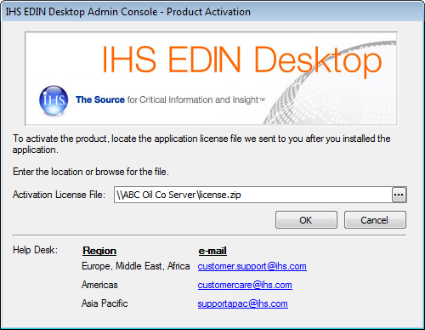
3. To the right of the Activation License File box, click ... to browse to and select the license zip file you received from IHS, and then click OK.
Admin Console verifies that the authorization.xml file in the zip file is compatible with your node key (which is unique to the machine on which EDIN is installed), and if so, updates the license file.
| Creating and editing data sets | Loading incremental updates |