Incremental updates enable you to maintain fresher data while reducing the overall time required to install new data. They are available online when you subscribe to this feature; otherwise, you can update data incrementally using a DVD from IHS.
The incremental update process reads from your entitlements file to determine the data to which you're entitled. It writes and deletes IHS data in your local source to match the most current data available from IHS.
In cases where you've changed the data subscription in your entitlements file, where a previous incremental update has failed, or where you've changed the data source connection details, a full data install instead of an incremental update is required.
EDIN isn't available while data updates are being applied, and EDIN Desktop users are automatically logged off. To get around this, you can download incremental updates any time but apply them outside of peak hours. You can also schedule Windows Event Manager to download the updates and install them automatically. For details, see Related topics below.
The incremental update process reads from your entitlements file to determine which data you're entitled to. It writes and deletes IHS data in your local source to match the most current data available from IHS.
To load incremental updates
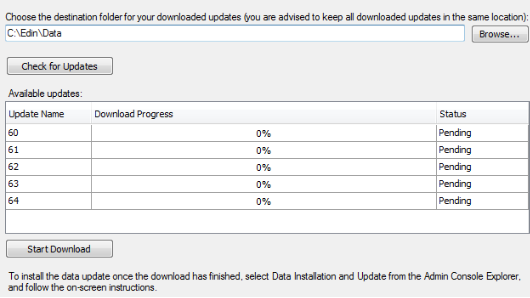
1. Using the Admin Console navigation tree, click Download Data Updates.
The Download Data Updates dialog box appears.
2. If this is the first time you've downloaded incremental updates, click Browse and navigate to a location where you will always download future updates. If this path is changed, a full data install instead of an incremental update is required.
3. Click Check for Updates.
The Available Updates pane displays the relevant incremental updates you can download. Only data more recent than your current data and relevant to your entitlements file appears.
4. Click Start Download.
If an incremental update fails, all the data installed up to that point can still be accessed using EDIN Desktop.
5. In the Admin Console navigation tree, click Data Installation and Update.
The Data Installation and Update dialog box appears.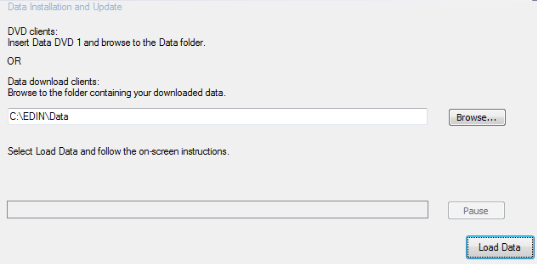
6. Browse to the location where you downloaded the incremental update.
7. Ensure the correct data set to update appears in the drop-down list, and then click Load Data.
8. Verify the latest updates have been applied by selecting Help from the main toolbar menu, and then Data Currency.
The latest data is visible to EDIN users the next time they launch EDIN.
| Monitoring EDIN Desktop usage | Creating and editing data sets |
| Updating EDIN licenses and entitlements | Configuring silent data updates |