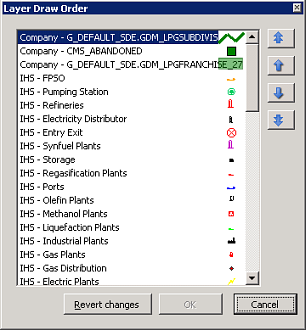
Change the draw order to better display layers of interest. By default, the draw order is polygons, lines, and then points where first the proprietary layer is drawn, followed by the IHS layer. You can change the order of IHS and company layers so that an IHS layer is drawn before a company layer.
The order in which layers draw isn't related to the order in which layers are listed in the Layer Legend.
To change the draw order of layers
1. Right-click Company Layers in the Layer Legend, and from the shortcut menu, click Draw Order.
The Layer
Draw Order dialog box appears.
2. Drag layer names
up or down in the list to change the draw order where moving a layer up
renders it first and moving it down renders it last.
OR
Click the arrow keys (


 )
to move a highlighted name.
)
to move a highlighted name.
Generally, you'll want to draw first polygons, then lines, and then points.
3. Click OK.
Click Revert changes to sort the layers using to the default draw order.
| Adding company layers | Displaying proprietary shapefiles to EDIN Desktop users |