Add individual proprietary layers so that they can be seen by EDIN Desktop users. Once added, configure the layers by following the topics listed in Related topics below.
To configure company layers
1. With EDIN launched in Admin mode, display a map.
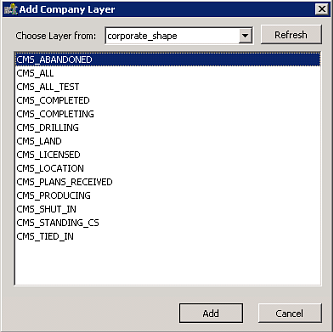
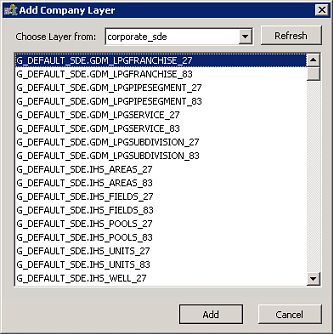
2. Using the Map Legend, right-click the Company Layers node and select Add, and then either corporate_shape, or corporate_sde.
Depending on your selection above, one of the following appears:
| corporate_shape | corporate_sde |
| |
3. Select a layer to add and then click OK.
Layers must be added to the map one at a time.
To remove a layer, either right-click individual layers and select Remove from the shortcut menu,
OR
right-click a group or the Company Layers node and select Clear Layers from the shortcut menu.
| Editing layer attributes | Changing spatial layer display |
| Changing the draw order of layers | Grouping the layer legend |