Clipboard: Copying and Pasting
 Click to see Subtopics:
Copying and Pasting Properties / Configurations
By copying and pasting data from one entity, you can use the same data / configuration for a number of wells without entering the data for each well individually.
By copying and pasting data within the same well, you can set up new configurations by copying, and then modifying an existing configuration.
Copying and Pasting Fluid / Formation Properties
To copy and paste fluid / formation properties from one entity to another:
1. With the Properties Editor open, click an entity in the Entity Viewer.
2. Click the fluid / formation category that you want to copy in the selection tree.
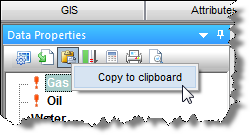
3. Click
the Clipboard Options icon ( );
then select Copy to Clipboard.
);
then select Copy to Clipboard.
4. Click a different entity in the Entity Viewer. (That entity's data is displayed in the Editors tab.)
5. Paste the fluid / formation properties by doing one of the following:
- Click the Clipboard
Options icon (); then select
Paste from Clipboard.
- Drag the data from the clipboard into the fluid / formation selection tree.
Pasting Fluid / Formation Properties to Multiple Entities
After you have copied a set of fluid / formation properties to the clipboard, you can paste these properties to multiple entities.
To paste these properties to multiple entities:
1. Select your entities in Hierarchy pane.
2. Drag your properties data from the Clipboard pane to the Hierarchy pane; hover over the selected entities and then release the mouse button.
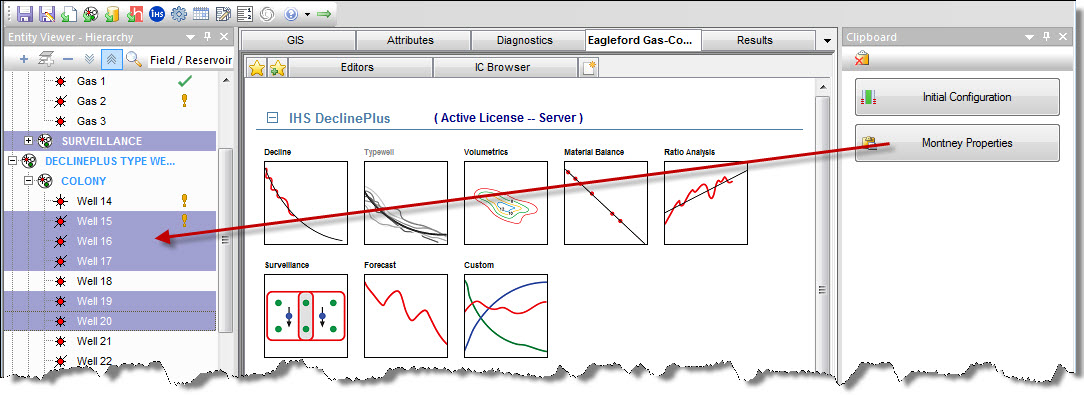
A dialog box opens prompting you to confirm the modification.
3. Click OK to proceed.
Rock and fluid properties are copied from the clipboard to all the selected entities.
Note: Alternatively, you can select several entities, then right-click and select "Copy Properties to Clipboard" to copy the properties over the selected entities.
Copying and Pasting Wellbore Data
To copy and paste wellbore data from one entity to another:
1. With the Wellbore Editor open, click an entity in the Entity Viewer.
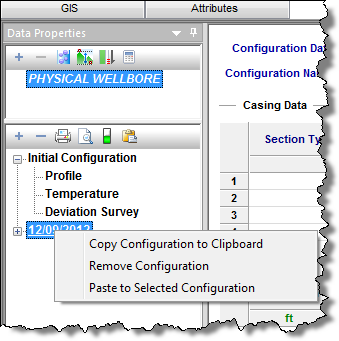
2. Right-click the configuration or parameter set that you want to copy in the selection tree; then select Copy Configuration to Clipboard.
3. Click a different entity in the Entity Viewer. (That entity's data is displayed in the Editors tab.)
4. Paste the wellbore data by doing one of the following:
- Right-click the same configuration or parameter set that you copied in the selection tree; then select Paste Selected Configuration.
- Drag the data from the clipboard into the Configuration selection tree.
Copying and Pasting Analyses
This procedure applies to the following analyses:
- Decline – by copying a decline analysis from one entity to another, you can compare analyses between wells.
- Type well – by copying a type well analysis between wells in the same pool, you can assign the analysis to a well for which you do not have production data.
- Single-layer PSS – by copying a single-layer PSS analysis from one entity to another, you can quickly set up the analysis parameters for similar wells, and tweak the parameters, as needed.
To copy and paste analyses:
1. Perform an analysis on the first well; then add the analysis to the Analysis Manager.
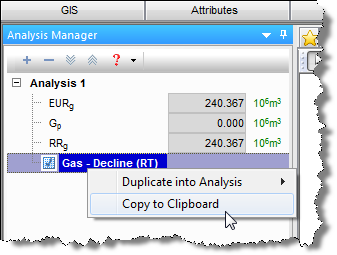
2. Right-click the analysis in the Analysis Manager; then select Copy to Clipboard.
3. Perform an analysis on the second well.
4. Paste the analysis from the first well into the second by doing one of the following:
- Drag the copied data from the Clipboard window onto the location where you want to paste it.
- Right-click inside the Analysis Manager and select Paste Analysis from Clipboard.
Note: Pasting a decline or a type well analysis into another type well's Analysis Manager is not supported. However, a decline or a type well analysis copied to the clipboard may be pasted into the Analysis Manager of another decline analysis.
Copying and Pasting Model Parameters
In the unconventional reservoir, analytical, and numerical analysis methods, you can copy-and-paste model parameters from one worksheet to another.
Note: The worksheets can belong to the same entity, or a different entity. However, you can only copy and paste data between worksheets of the same analysis type.
To copy and paste model parameters from one entity to another:
1. Perform an unconventional reservoir, analytical, or numerical analysis on the first well.
2. Enter the required model parameters.
3. Click
the Clipboard Options icon ();
then select Copy to Clipboard.

4. Perform the same analysis type on another entity.
5. Paste the model parameters from the first well into the second by doing one of the following:
- Drag the copied data from the clipboard onto the location where you want to paste it.
- Click the clipboard contents you want to copy;
click the Clipboard icon ();
then select Paste from Clipboard.
Note: Harmony recognizes the parameters and pastes them in the correct fields, even if the fields are in different locations in the two worksheets.
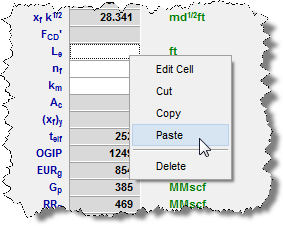
Copying and Pasting Data in a Table Cell
To copy and paste data from one table cell into another:
1. Display data in a table format.
2. Right-click inside the cell and select Copy.

3. Right-click inside the target cell and select Paste.