Extracting Project Data
You can extract a portion of the data from an existing Harmony project to create a new project. This function is useful, for example, for breaking a master project into smaller files (which you can merge at a later date), or for sending a portion of the data in your project to technical support.
Data from the following areas applies to all entities (including wells and layers) and is extracted during this procedure:
|
|
|
|
|
|
|
|
|
|
|
1. Click File, Extract... Checkboxes are displayed next to the entities in the Entity Viewer.
Note: If the Entity Viewer is hidden, you will need to display the Entity Viewer.
2. Select the entities that you want to extract.
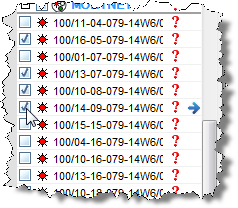
Note: Layers associated with multilayer wells cannot be extracted individually; the wells and their associated contents will be extracted together.
3. Click Extract.
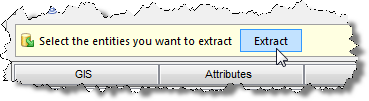
The Save As dialog box opens.
4. Browse to your file's location; enter a filename; then click Save.
The file is saved as a new Harmony project.