Importing from IHS ENERDEQ
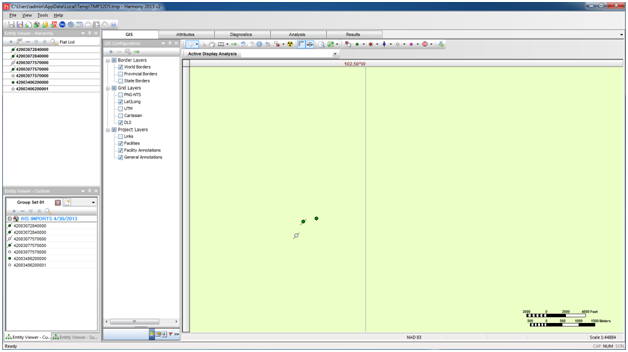
By connecting directly to IHS’s ENERDEQ, you can import wells and their well production data directly into Harmony, without already having these wells in your projects. You can view all well attributes using a simplified GIS interface.
Note: Currently this feature is only available for US data; IHS Canada connections are slated for future release.
To import wells from IHS:
1. Click the Import / Update
from IHS icon ( ) on the main toolbar.

A drop-down menu opens.
2. Select Import New Wells, ENERDEQ USA.
Or, click the File menu, and select IHS Import, ENERDEQ USA.

The IHS ENERDEQ USA Credentials dialog box opens.

3. Enter your user name and password; and then click Connect.
The IHS Import dialog box opens.
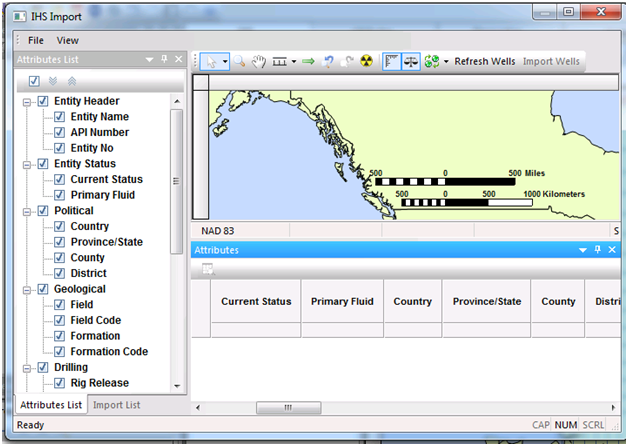
Since the IHS Import function is limited to viewing / importing a maximum of 2,500 wells on-screen, you may need to limit your search to a smaller area. You can manually pan-and-zoom to this area, or you can use the Go To feature.
4. Click Refresh Wells ( ) on the toolbar.
Your wells are displayed on the map.
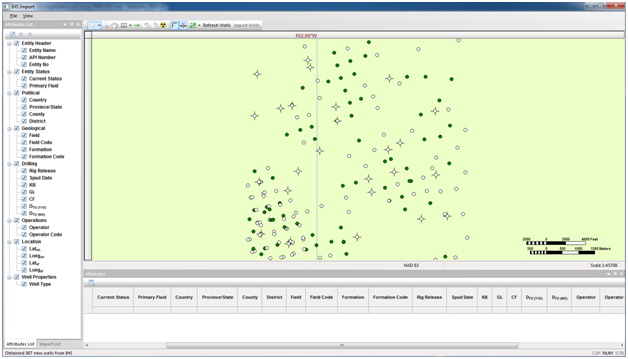
5. Select the wells you want to import by clicking the Selection tool ( ) on the toolbar, or by querying wells.
When wells are selected, their attributes can be viewed in the Attributes pane. You can also select which attributes are displayed by clicking the appropriate checkboxes in the Attributes List.
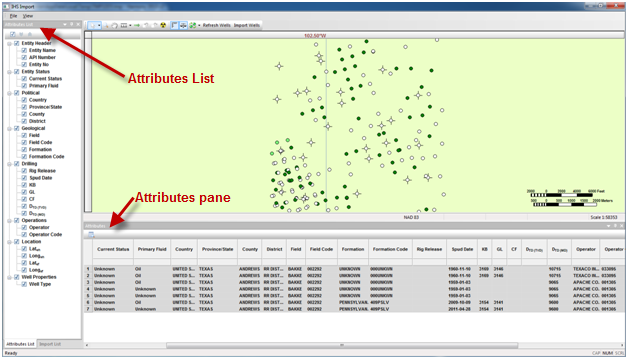
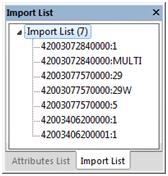
6. To view a list of wells to be imported, click the Import List tab at the bottom of the Attributes List.
7. To import these wells into your Harmony project, click Import Wells ( ) on the toolbar.
All of the selected wells, including their attributes and production data, are imported into your Harmony project.