Removing Unnecessary Data (via Data Reduction)
 Click to see Subtopics:
Data reduction is the process of removing unnecessary data prior to importing the usable data into Harmony. The Data Reduction dialog box opens when the number of production rows in a well reaches the threshold defined in the Options dialog box, or if you have selected the Always Display the Data Reduction Dialog Box option.

The plot displays the production data broken up into automatically detected flowing and shut-in periods ("ranges").
With the slider, you can apply a smaller or greater amount of data reduction based on either an arithmetic or logarithmic filter. The slider only applies to the selected range (which is displayed darker on the plot.) If you select the Use Defaults option, the selected range is filtered based on the default settings.
The selection tree displays the incoming production data, including producing / injecting rates, or volumes and pressure data.
Hovering your mouse over an empty portion of the plot displays the number of points originally in that range, and how many are remaining after applying the current filter. Hovering the mouse over a data point displays that data point's type and date.
The Data Reduction dialog box contains the following buttons:
- Reset — resets the Data Reduction dialog box to its initial configuration.
- Reduce — reduces the current well's data based on that well’s reduction criteria.
- Reduce All Wells — reduces the current well's data based on the well's reduction criteria, and all other wells based on the default reduction criteria.
- Cancel — imports the current well without applying reduction.
- Cancel All Wells — imports all wells without applying reduction.
Selecting / Deselecting Points
You can select / deselect points using the point selection tools.
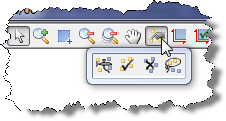
Selected points are used in filtering procedures (such as merging ranges and applying default settings).
Zooming into or out of a Range
You can zoom into a range by clicking the  icon
in the bottom right corner of every range.
icon
in the bottom right corner of every range.
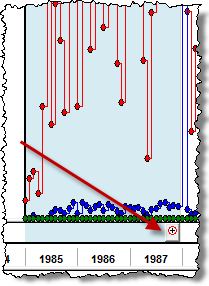
Zoom out of the range by right-clicking the plot, or by clicking one of the Zoom Out icons.
Adding, Resizing, and Merging Ranges
To add a range:
Click inside the range area just above the main plot area. A marker opens.
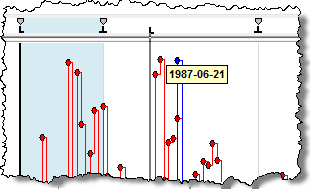
To resize a range:
Drag the range marker to the left or right.
Note: You can move any range marker except those at the furthest left and right.
When you merging a range, you can copy the filtered values from one range to the next range.
To merge a range:
Click the Merge All Ranges
icon ( )
on the main toolbar.
)
on the main toolbar.
Or, right-click a marker and select Merge Left or Merge Right.
Displaying Filtering Details
To display the details of the filtering process:
Click the Display Data
Reduction Filtering Table icon ( ). The
Display Data Reduction Filtering table opens.
). The
Display Data Reduction Filtering table opens.
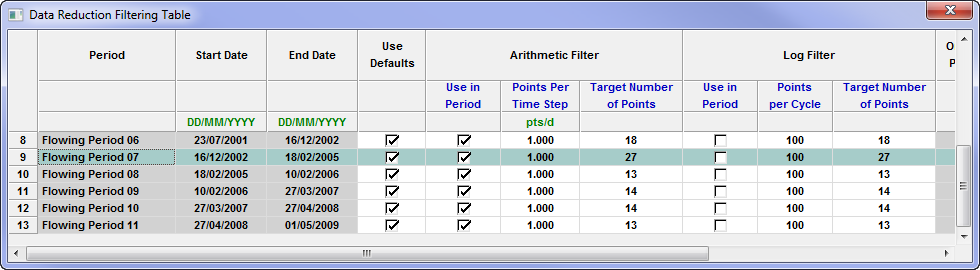
This table displays the original and remaining points in each range, and running totals of both. You can select or deselect checkboxes, or click inside a field and enter custom values.