 ).
).Automate the data download and install process using Windows Task Scheduler to invoke Admin Console to download EDIN incremental updates during non-peak hours.
To load incremental updates
1. Click the Start button, point to Settings, and then click Control Panel.
2. Double-click Scheduled Tasks ().
The Scheduled Tasks dialog box appears.
3. Double-click Add Scheduled Task ( ).
).
The Scheduled Task Wizard appears.
4. Click Next.
5. Using the installed applications display pane, select IHS EDIN Admin Console, and then click Next.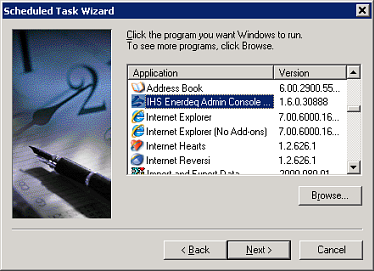
6. Type a name for the scheduled task and a frequency with which to download data, and then click Next.
7. Select a start time, frequency, and start date, and then click Next.
8. Type logon details, and then click Next.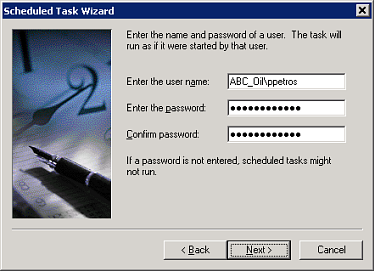
9. Ensure the Open advanced properties... check box is selected, and then click Finish.
The Task dialog box appears.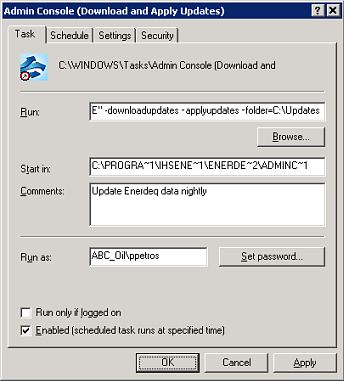
10. Type one of the following in the Run box after the existing string:
Download updates for the current dataset -downloadupdates -folder="D:\Updates"
Apply updates for the current dataset -applyupdates -folder="D:\Updates"
Download and apply updates for the current dataset -downloadupdates -applyupdates -folder="D:\Updates"
11. Click OK.
The scheduled event downloads data according to the parameters you set above. Three successive attempts are made to connect to the IHS data server should a connection fail.
Verify that the scheduled event occurred using the Admin Console event logs.
| Monitoring EDIN Desktop usage | Creating and editing data sets |
| Updating EDIN licenses and entitlements | Loading incremental updates |